# ToolingMetrics CAM Connect for Autodesk Fusion
Set up the Tooling Metrics connection in Autodesk Fusion and sync your tool library.
Source: https://support.toolingmetrics.com/en/integrations/cam-connect/autodesk-fusion/
Updated: 2026-10-29
**Prerequisites:** Autodesk Fusion installed. A Tooling Metrics account with Engineering → Projects — User or above (to export setups) and Library → Tool Assemblies — User or above (to import the tool library).
**Note:** This tutorial is optional. Skip it if your shop does not use CAM software or if you use a different CAM system.
**CAM Connect** eliminates the need to manually re-enter operations and tool assignments from your CAM program into Tooling Metrics. The CNC programmer selects tools directly from the Tooling Metrics library inside Fusion, then exports the full project structure — jobs, operations, tool assignments, and cutting parameters — in one step.
:::caution[Verify before machining]
Calculated speeds, feeds and depths are starting values. Before you machine, check the tool geometry, units, cutting parameters and the machine's limits against the tool manufacturer's data and your shop's procedures. See section 10 of the [Terms of Service](https://toolingmetrics.com/eng/legal/terms).
:::
## Install the plugin
1. Open Autodesk Fusion.
1. Go to **Tools → Add-ins → Autodesk App Store**, search for **Tooling Metrics Connect**, and download the installer. You can also open its [Autodesk App Store page](https://apps.autodesk.com/FUSION/en/Detail/Index?id=377710859794296834&appLang=en&os=Win64) directly.
1. Double-click the downloaded installer and follow the on-screen instructions.
1. Restart Fusion.
## Authenticate
Tooling Metrics Connect authenticates with an API token. There is no separate sign-in.
1. In Tooling Metrics, click your avatar at the bottom of the sidebar → **Setting** → **API Tokens** tab, and create a token.
1. In Fusion, open **Tooling Metrics → Preferences** and paste the token into **API Token**.
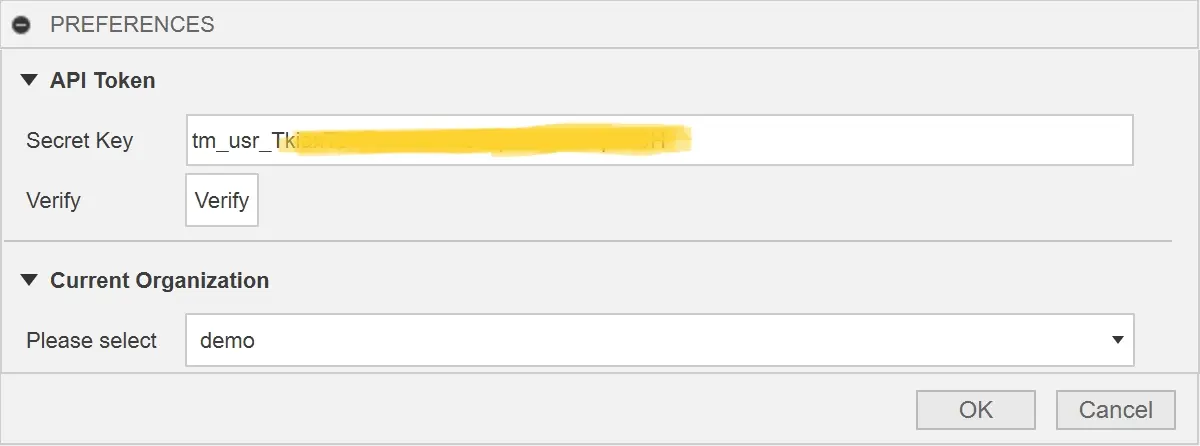
Fig. 1: Enter your Tooling Metrics API token in Fusion Preferences.
The token identifies you as the user, so the plugin works with your access and records exports and imports under your name.
## Select tools from the library in Fusion
Once connected, the Tooling Metrics tool library is available inside Fusion's tool selection dialogs. When programming an operation, select your tool from the Tooling Metrics library rather than Fusion's local library. This links the Fusion operation to the Tooling Metrics tool assembly.
## Export the project
1. In the **Tooling Metrics Connect** panel, click **Export Project**.
1. Select the setups you want to export.
1. Click **Export**. Tooling Metrics Connect sends the project data — jobs, operations, tool assignments, cutting parameters — directly to your Tooling Metrics account.
## Review and release in Tooling Metrics
1. In Tooling Metrics, open **Engineering → Projects**. The imported project appears with all jobs and operations populated.
1. Review the imported data: check that tool assemblies matched correctly and cutting parameters are as expected.
1. Release the job to generate the setup sheet as described in [Project release and approval](https://support.toolingmetrics.com/en/engineering/tutorials/project-release-approval/).
## What to expect
Operations imported via CAM Connect carry the exact cutting parameters from the CAM program — no manual re-entry. If a tool assembly used in Fusion does not exist in Tooling Metrics, it is flagged for review after import.
For troubleshooting, see [Troubleshoot CAM Connect](https://support.toolingmetrics.com/en/integrations/cam-connect/troubleshoot/).
## Import the tool library and export setups
The Autodesk Fusion integration lets you import your Tooling Metrics tool library directly into Fusion's tool library, and export programmed setups back to Tooling Metrics as a project.
### Step 1: Configure your API token in Fusion
Open Autodesk Fusion and go to **Tooling Metrics → Preferences**. Paste your Tooling Metrics API token into **API Token**.
To create a token in Tooling Metrics, click your avatar at the bottom of the sidebar → **Setting** → **API Tokens** tab. See [Manage your API tokens](https://support.toolingmetrics.com/en/account/guides/manage-api-keys/).
### Step 2: Import the tool library
In Fusion's **Manage** workspace, open the **Tool Library**. Click the **Import from Tooling Metrics** button. Fusion fetches your organization's tool assemblies and imports them as Fusion tool definitions with full ISO 13399 parameters.
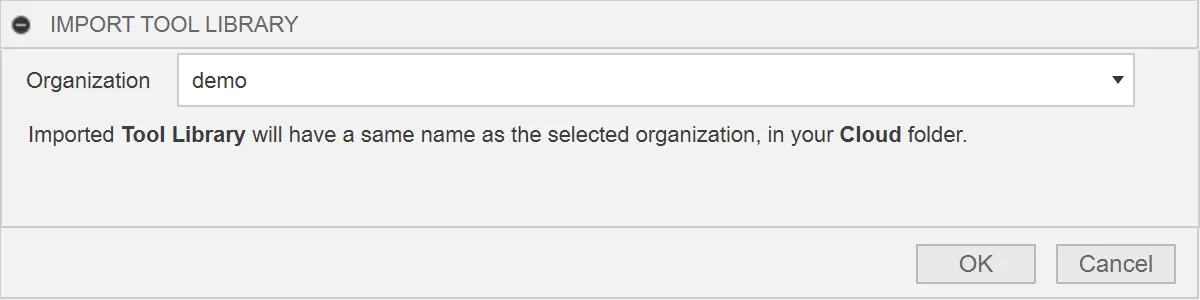
Fig. 2: Import your Tooling Metrics tool assemblies into Fusion's Tool Library.
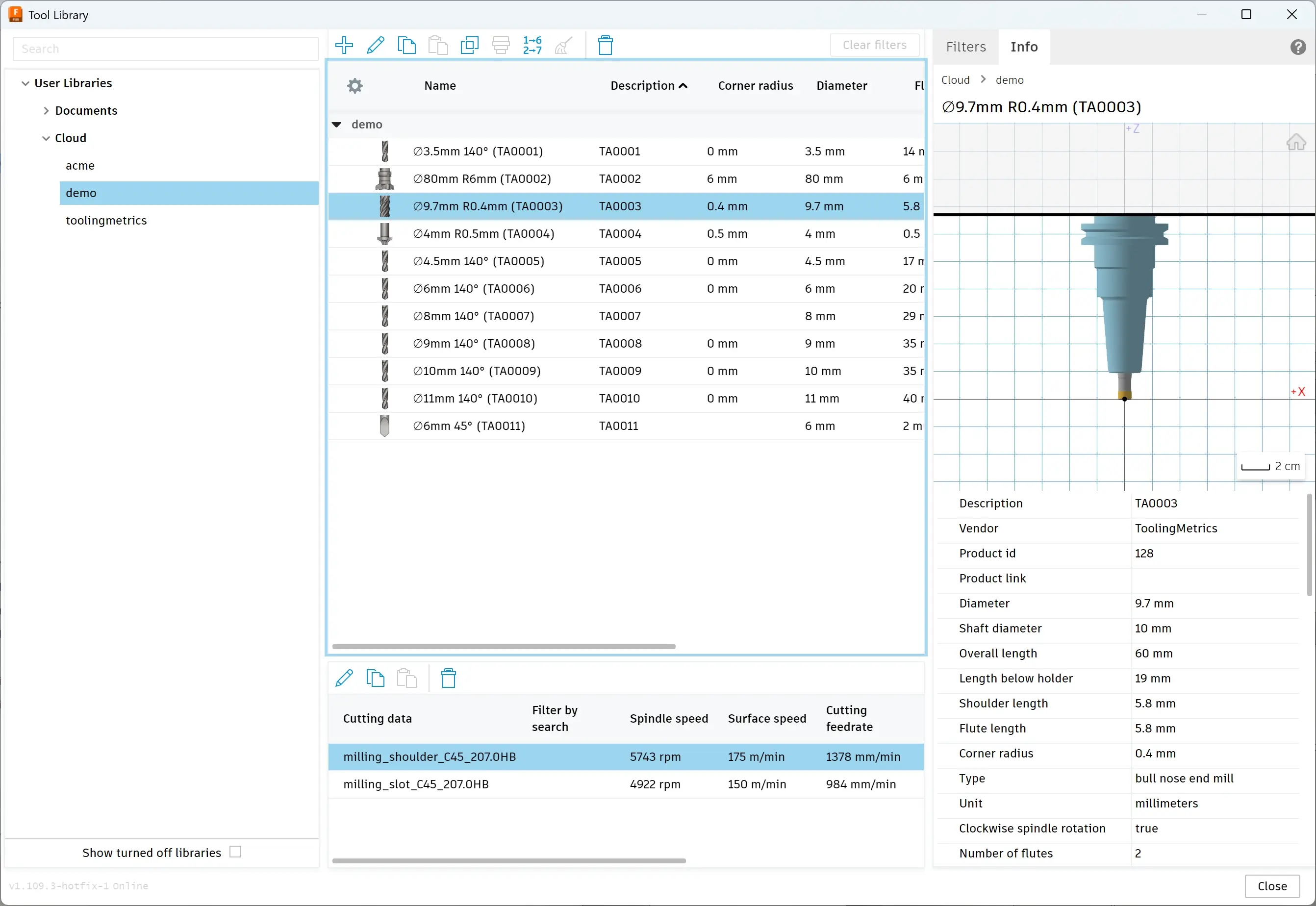
Fig. 3: Tooling Metrics tool assemblies visible in the Fusion Tool Library.
### Step 3: Program and simulate
Use the imported tools normally in Fusion. Program toolpaths, simulate, and verify your NC programs. Tool numbers and parameters in the CAM program match the tool assembly definitions from Tooling Metrics.
### Step 4: Export setups to Tooling Metrics
After programming, select **Export Setups** from the Fusion CAM menu. This creates or updates a Tooling Metrics project with all setups, operations, tool assignments, and cutting parameters from your Fusion document.
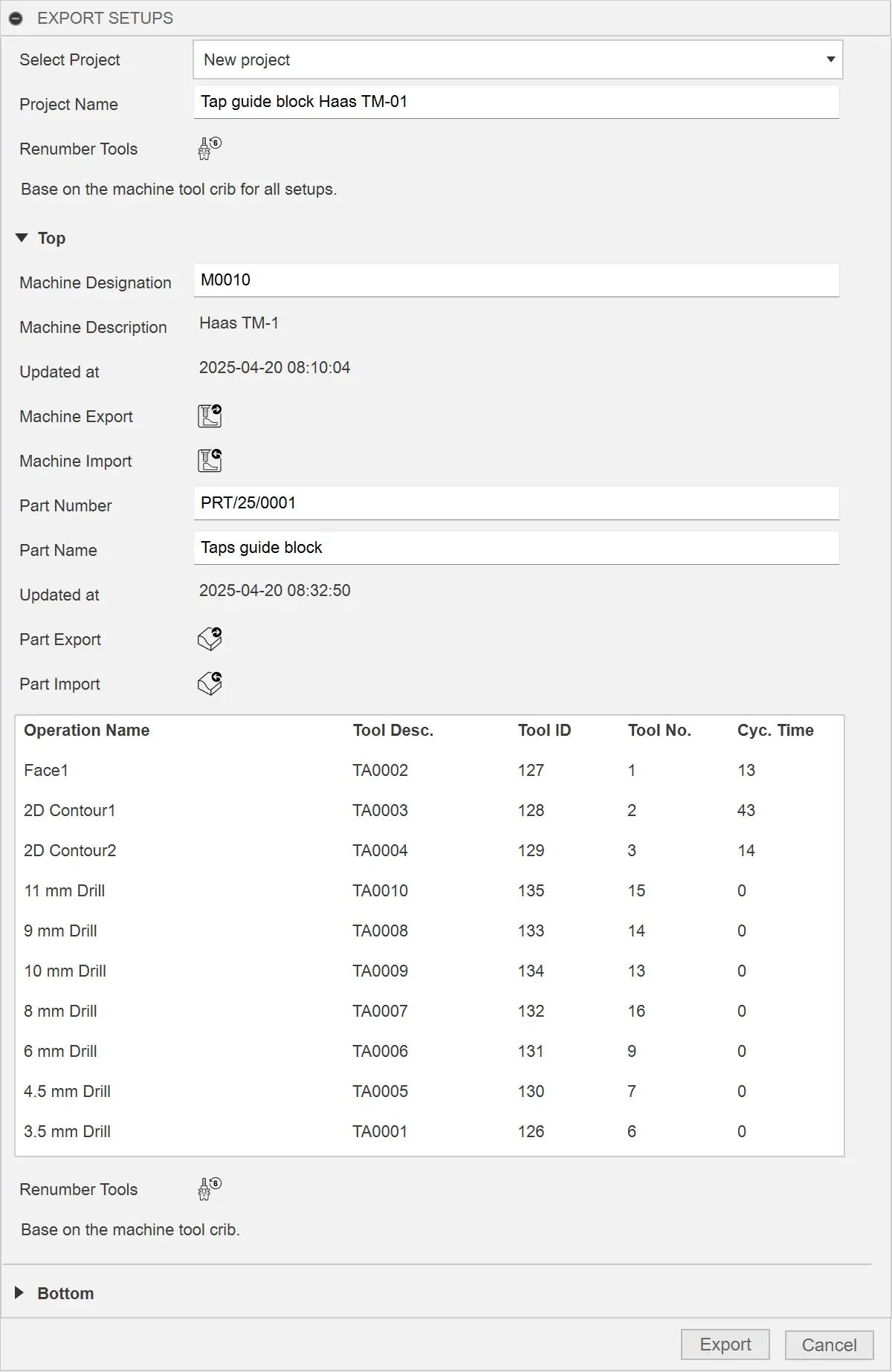
Fig. 4: Export Setups to a Tooling Metrics project from Autodesk Fusion.
After the export, open the project in Tooling Metrics to review operations, release for purchasing, and generate setup sheets.
## Unload the add-in
To unload the add-in without uninstalling it, open the **Scripts and Add-Ins** dialog, select the add-in on the **Add-Ins** tab, and click **Stop**. Clear **Run on Startup** to stop the add-in from loading in future Fusion sessions.
## Uninstall the plugin
Exit Autodesk Fusion, run the installer again, and click **Uninstall**. On Windows, you can also uninstall it from **Settings → Apps** like any other application.