# User interface
Descriptions of every interface area and component in Tooling Metrics.
Source: https://support.toolingmetrics.com/en/start-here/interfaces/
Updated: 2026-10-29
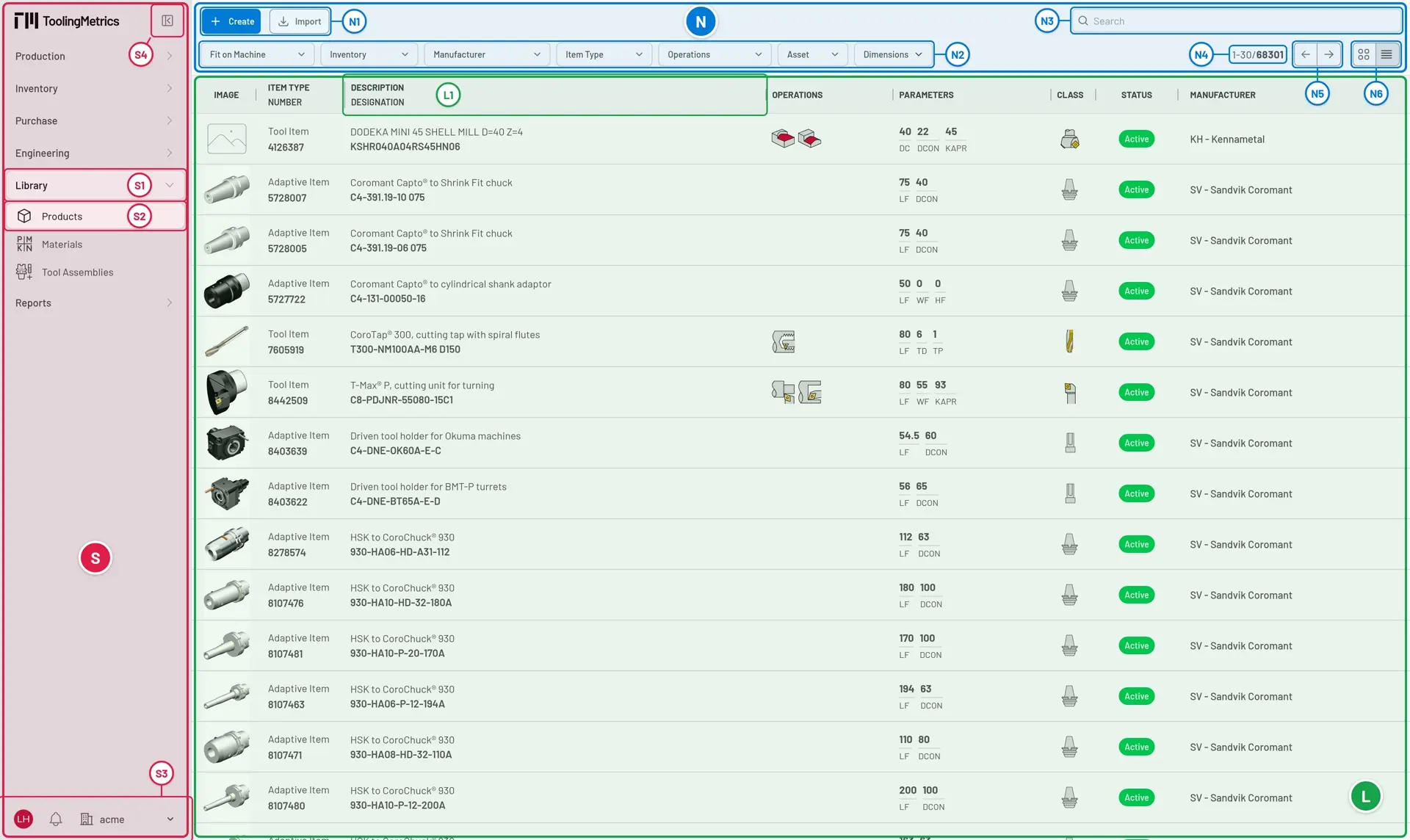
The Tooling Metrics interface is divided into three main areas: sidebar `S`, navigation bar `N`, and document list `L`. There is no top header: the logo, the modules, and your account, notifications, and organization all live in the sidebar.
## Sidebar
When the sidebar is expanded, the Tooling Metrics logo at its top returns you to the homepage.
- `S1` — Active module highlight. The current module stays expanded for faster navigation.
- `S2` — Active document type. The selected document icon or name. All accessible records appear in the documents list `L`.
- `S3` — Sidebar footer, at the bottom of the sidebar:
- **Account** — Your avatar. Opens **Setting** (update your profile, set language, measurement system, appearance, time zone, and API token), links to **Documentation**, **Support**, and **Third-party notices**, and **Sign out**. To switch the theme, choose **Light**, **Dark**, or **System** (matches your browser theme) under **Appearance** in **Setting**.
- **Notifications** — Bell icon. Opens on **All**; the **General** tab lists import results and system notices, the **Exports** tab the exported packages, ready to download. A red flashing dot indicates unread notifications.
- **Organization** — A building icon with your current organization's name. Click it to switch to another organization you belong to, or, if you are a site owner or admin group member, to open **Manage Organizations** and the admin center. When neither applies, it only shows the name.
- `S4` — Collapse/expand button, next to the logo at the top. Collapsed, the sidebar shows only icons, with each name in a tooltip; click the logo, or the empty space below the modules, to expand it again.
Related document types are grouped into modules. Clicking a module name expands its document types.
## Navigation bar
- `N1` — Action toolbar. Contains **Create** for creating records. May include **Import**, **Export**, or **Delete** depending on context.
- `N2` — Filters toolbar. Select boxes to narrow results by attribute values.
- `N3` — Search box. Type a value and press Enter to find matching records. Combined with active filters.
- `N4` — Record range indicator. Shows the current page range and total record count.
- `N5` — Pagination toolbar. Appears when there is more than one page. Navigate with next/previous buttons.
- `N6` — Layout switcher. Toggle between:
- **Table** — More detail in text and small icons. Supports bulk selection.
- **Cards** — Larger images for visual identification.
Search term, layout, and filter selections for each document type persist across browser tabs until your session expires.
Click a column header `L1` to sort by that column in ascending or descending order.
## Document detail
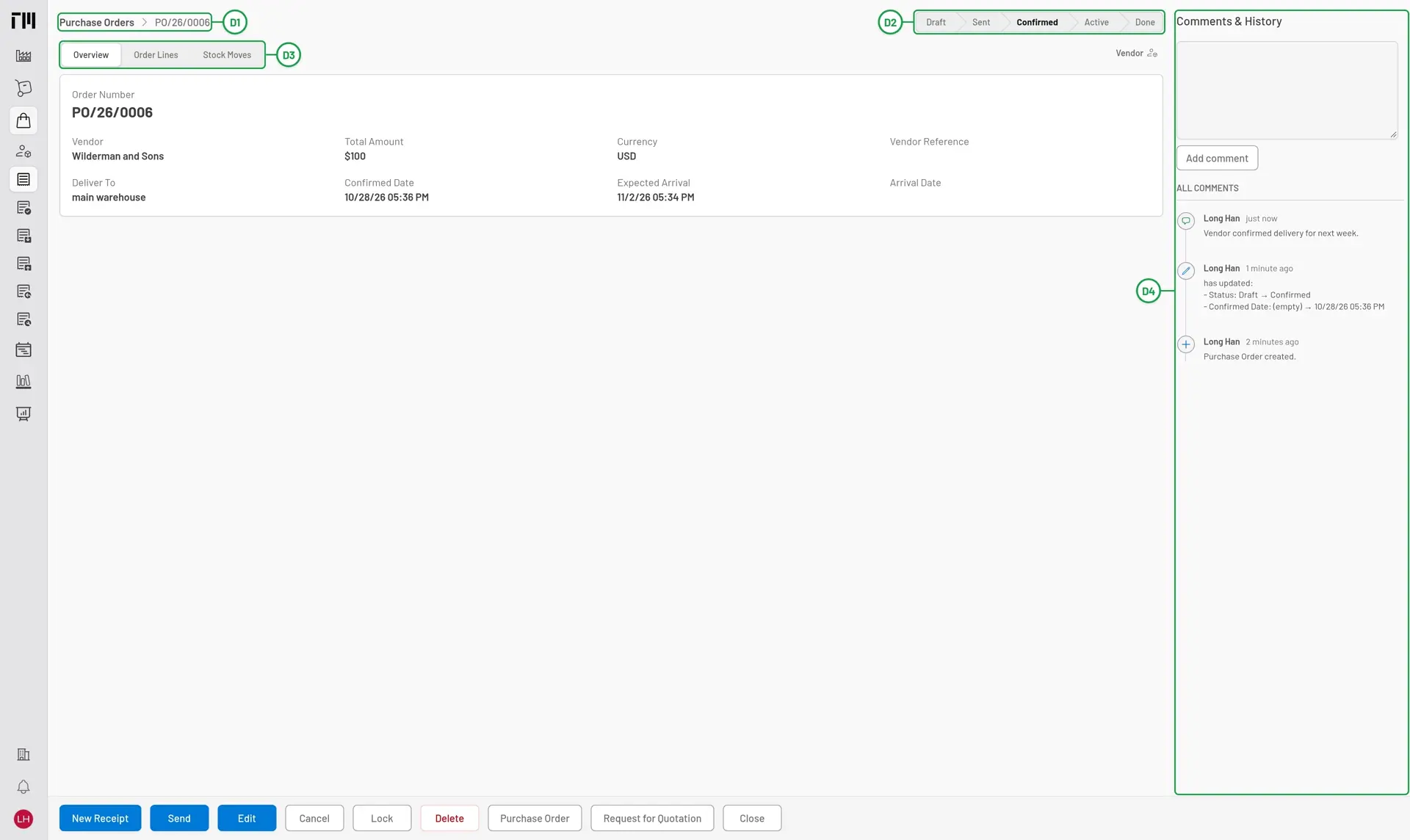
`D1` — Breadcrumb (left). Click the document type name to return to the list.
`D2` — Status bar (right). Shows the document's current status in its workflow.
`D3` — Tab bar. Organizes document attributes and related documents into sections.
`D4` — Comments & History (right). Add comments and view the timeline of changes. On a wide screen it stays open beside the document; otherwise, and on documents with an attachments viewer, open it with **Comments & History** at the right end of the bottom toolbar.
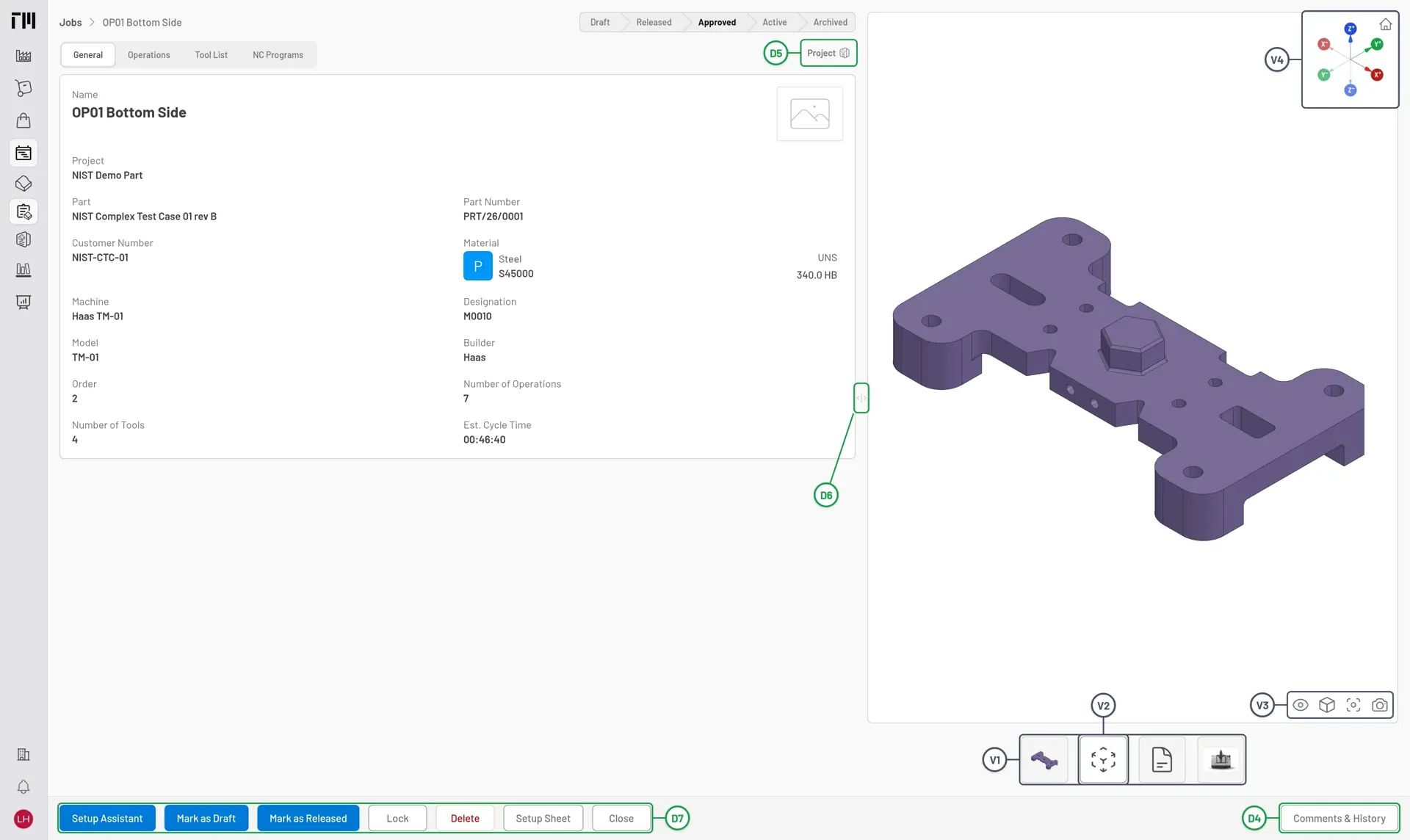
`D5` — Document references, at the right of the tab bar. Clicking a referenced document navigates to it (e.g., a purchase order links to its vendor, a job to its project).
`D6` — Resize handle, between the document and the attachments viewer. Click and hold to resize the viewer panel.
`D7` — Bottom toolbar (left side). Contains **Edit**, **Delete**, **Print**, and other contextual commands.
## Attachments viewer
The attachments viewer supports: images (`PNG`, `JPEG`, `GIF`), `PDF` documents, 2D drawings (`DXF`), and 3D models (`STEP`).
- `V1` — Attachments switcher (bottom). Lists all available attachments as thumbnails or icons.
- `V2` — Active attachment. The currently displayed file.
- `V3` — CAD toolbar, at the bottom right of the viewer. Appears when viewing a drawing or 3D model; a drawing has only **Fit** and **Capture**.
- `V4` — View cube, at the top right of a 3D model. Shows the orientation of the `X`, `Y`, and `Z` axes. Click an axis label to look along that axis, or the **Home (isometric)** button at its corner to return to the isometric view.
**CAD toolbar controls:**
- **Display** — Toggle the coordinate systems, the wireframe, and transparency.
- **Views** — Turn the model to **Front**, **Top**, **Left**, **Isometric**, **Back**, **Bottom**, or **Right**.
- **Fit** — Fit the model to the canvas.
- **Capture** — Download the current view as a PNG image, without the view cube.
- On a tool assembly, **Model detail** switches between the **Basic** and **Detailed** models, **Reload** reloads them, and **Display** also toggles the dimensions. On a product, **Basic** and **Detailed** sit beside the attachments switcher.
- Drag — Orbit the model. Right-drag to pan, scroll to zoom.
- Arrow keys — Orbit the model.
- W S — Move toward or away from the model. A D — Pan left or right.