# Stage II: Engineering
Register the machine, document the production process, and release the project for purchasing and production.
Source: https://support.toolingmetrics.com/en/start-here/quickstart/engineering/
Updated: 2026-10-29
**Role:** CNC Programmer / Process Engineer
**Prerequisites:** Stage I complete — product populated and tool assembly library built
**Hands off to:** Warehouse Manager / Inventory Controller ([Stage III](https://support.toolingmetrics.com/en/start-here/quickstart/inventory/))
## Demo part
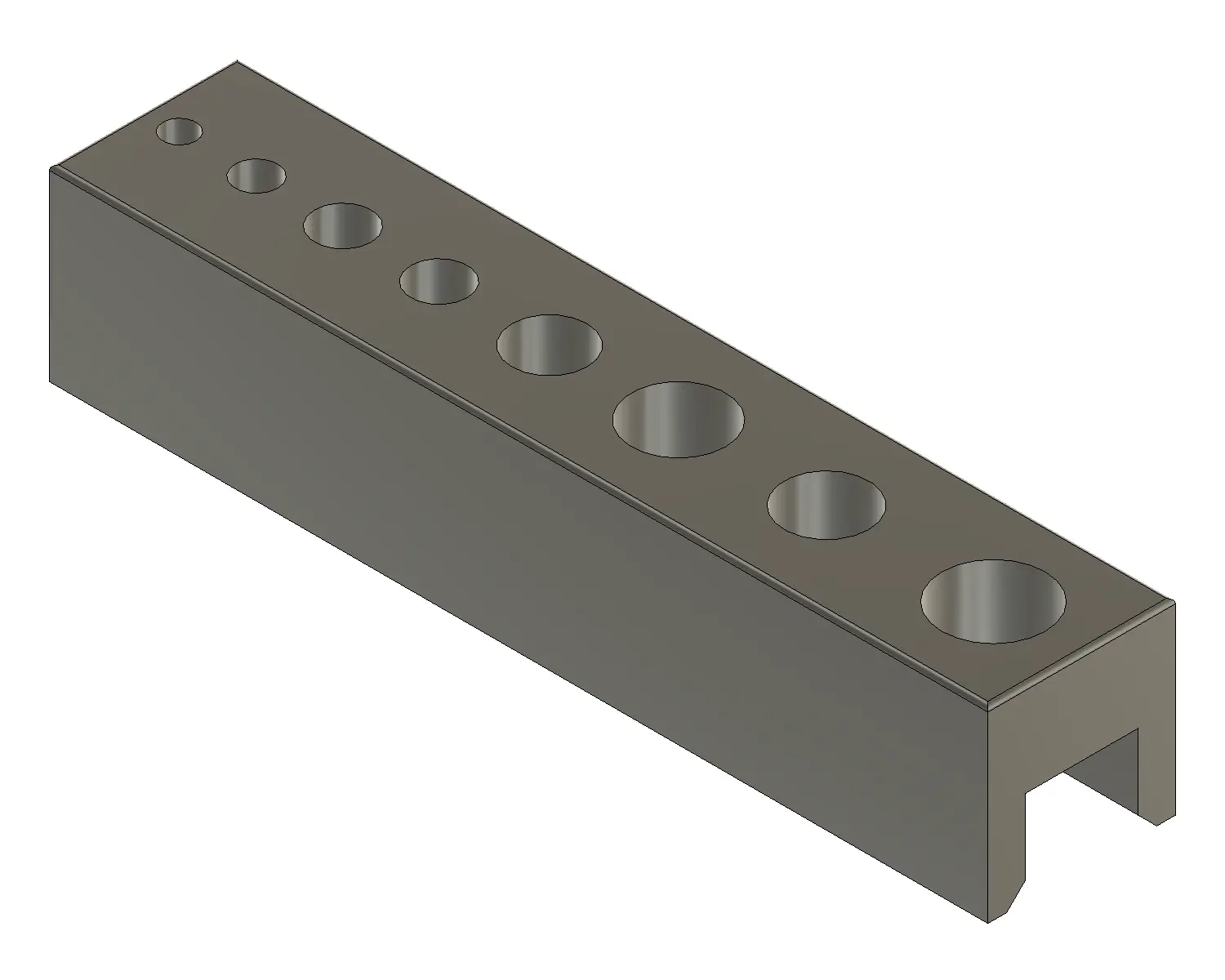
Fig. 1: Tap guide block
The part we will machine in this demo project is a Tap Guide Block — simple enough to program by hand or with CAM software. It starts from a solid rectangular blank in two setups: the first machines the top face (face milling, shoulder milling, and drilling holes from 3.5 mm to 11 mm), the second — from the opposite direction — adds a slot, a shoulder, and a chamfer. To keep small-batch production efficient, we combine both into one project using the multiple-setup strategy.
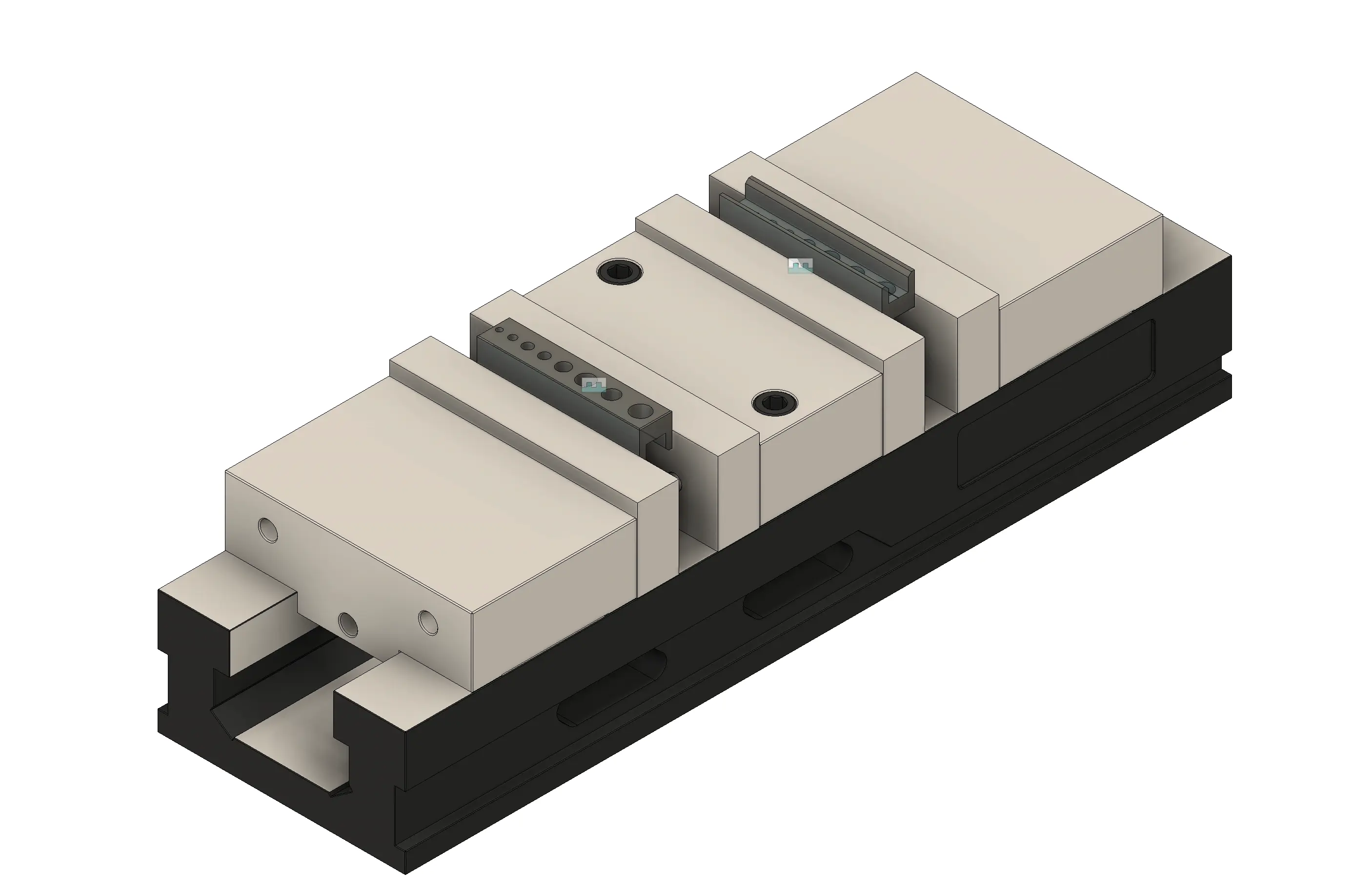
Fig. 2: Project setup illustration with multiple setups strategy
You can download the [STEP model](https://support.toolingmetrics.com/sample/tap_guide_block.stp) and the drawing ([PDF](https://support.toolingmetrics.com/sample/tap_guide_block_drawing.pdf) / [DXF](https://support.toolingmetrics.com/sample/tap_guide_block_drawing.dxf)).
## Workflow
1. [Create the machine](https://support.toolingmetrics.com/en/production/tutorials/create-machine/) and set up its tool interfaces.
2. Document the process with either your **CAM software** or the **Process Designer**.
- Use the [ToolingMetrics CAM Connect](https://support.toolingmetrics.com/en/integrations/cam-connect/) plugin to connect your CAM software to your tool library in Tooling Metrics. When finished, export all CAM data into a Tooling Metrics project. Download the starter CAM file and follow the tutorial for your CAM software.
- [Use the Process Designer](https://support.toolingmetrics.com/en/engineering/tutorials/process-designer/) to enter the setups and operations manually.
3. [Release and Approve](https://support.toolingmetrics.com/en/engineering/tutorials/project-release-approval/) the project, which locks the project for editing and sends all tooling data to the other teams.
## Outcome
The project is approved and its tool assemblies are released; every product in them is used to create inventory Items, most at zero on-hand. The Inventory Controller can start [Stage III](https://support.toolingmetrics.com/en/start-here/quickstart/inventory/).