Manage a tool crib
Assign a slot number to a tool loaded in a machine, so it matches the NC program's T-codes.
Prerequisites: A machine is configured with at least one Component (head, turret, or gang). A tool has been transferred to the machine.
Required permission: Production → Machines — User or above. Anyone who can open the machine can assign pocket numbers; a User sees only the machines they created.
View the machine’s tool crib
Section titled “View the machine’s tool crib”- In the sidebar, click Production → Machines and open the machine.
- Click the Tool Crib tab. Every tool currently at the machine appears here — a tool only shows up once it’s actually been picked or transferred there, so there’s nothing to configure ahead of time.
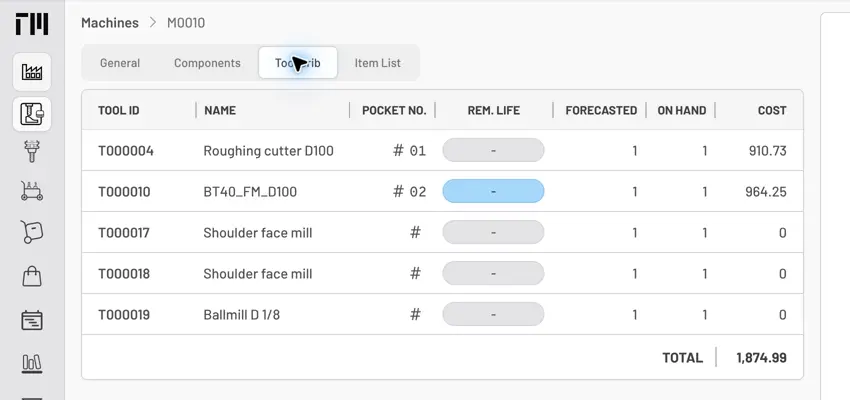
Fig. 1: Tool Crib tab — current columns include tool ID, name, pocket number, remaining life, forecasted and on-hand quantities, and cost.
Assign a pocket number
Section titled “Assign a pocket number”- Click the Pocket No. next to any tool in the list (blank if unassigned).
- In the Assign Slot Number dialog, select the Machine Component — the head, turret, or gang the slot belongs to — and enter the Pocket No.
- Click Update.
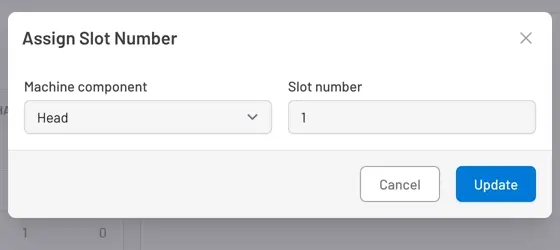
Fig. 2: Assigning a pocket number — pick the component, then the slot position within it.
- The pocket number is what the T-code in NC programs refers to (e.g., slot 3 = T03).
- A component’s number of slots is fixed when it’s configured on the machine — see Machines Reference. Tooling Metrics rejects a pocket number that’s already taken on that component, or beyond its configured slot count.
- Use Renumber tools for an NC program to reconcile pocket numbers with a job’s T-codes before running it.
- A tool reaches the machine via a Pick List or a Tool Transfer, and its slot assignment is cleared automatically when a Return List moves it back off the machine — see Prepare tools for a job and Process a return list.


© 2026 ToolingMetrics. All rights reserved.