Use the Setup Assistant
Automatically generate tool records, tool transfers, and pick lists for every tool a job needs — in one step.
Prerequisites: The job is in Approved or Active status. Operations have tool assemblies assigned. The machine has a Warehouse Access Point configured.
Required permission: Engineering → Jobs — User or above (Engineering → Projects for a multiple-setup project). Admins can run it on any job; Managers and Users only on the jobs they created. The Tools, Tool Transfers, and Pick Lists it creates do not require a Production or Inventory permission.
The Setup Assistant reads all operations in a job, matches each tool assembly to available tools in the warehouse, and generates the document set needed to physically prepare the tools: Tool records (for new tools), Tool Transfers (for tools moving between locations), and Pick Lists (for components that need to be picked from storage). What would take hours of manual searching and document creation happens in three steps.
Step 1 — Configure sources and priorities
Section titled “Step 1 — Configure sources and priorities”- Open the job (or project for a multiple-setup job).
- Click Setup Assistant on the bottom toolbar.
The first screen sets where the assistant looks for tools and how it ranks candidates.
- Check Machine warehouse and/or Machine parent warehouse to set where the assistant searches for candidate tools. Check both to give the assistant the widest possible pool.
- Choose a tool priority — Location, Remaining Life, or Both (default) — to set how candidate tools are ranked.
See the full list of warehouse sources and priority rules in the Setup Assistant Reference.
Click Next.
Step 2 — Review and select tools
Section titled “Step 2 — Review and select tools”The second screen lists every tool assembly the job requires, one per row.
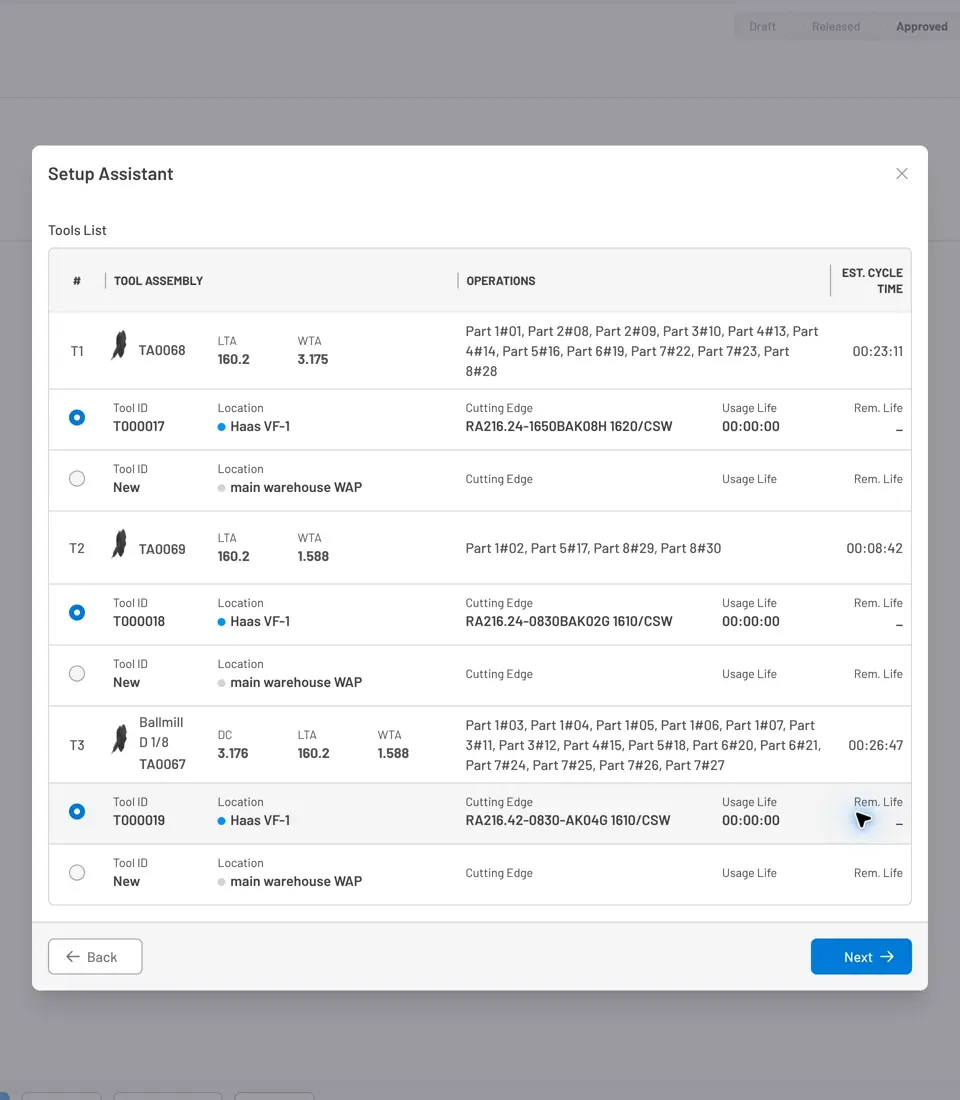
Fig. 2: Tools step — each row is one tool assembly. Select an available tool or choose New to make a fresh tool record.
For each row:
- Review the T-code and assembly name — confirm this is the tool you expect.
- The assistant lists up to five available tools that match this assembly, sorted by the priority you selected. Each candidate shows its current location, condition, and remaining life.
- Select a candidate tool from the list or select New if no suitable tool exists or the available tools are all too worn for this job’s cycle time.
- Check Create Pick List if the selected tool needs items picked from storage (e.g., the cutting edge needs to be replaced before use, or a new tool needs components staged).
Click Next when all rows have a selection.
Step 3 — Review suggested stock moves
Section titled “Step 3 — Review suggested stock moves”The third screen shows a preview of every document the assistant will create.
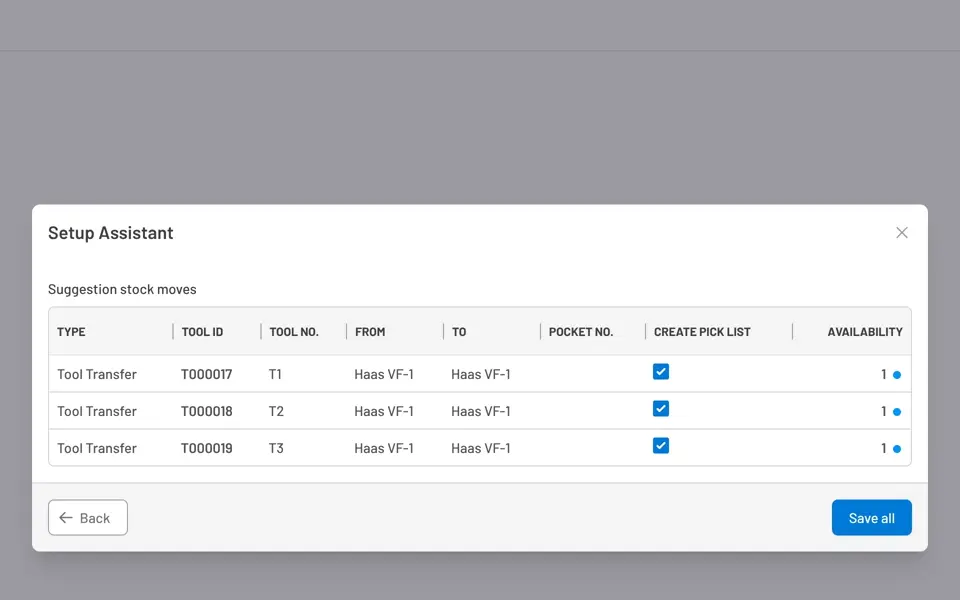
Fig. 3: Suggestion step — review every move before committing. Rows highlighted in yellow indicate a tool slot number that differs from the job’s T-code.
Each row shows the move type, tool number, source and destination locations, whether a pick list will be created, and whether the tool or item is available. See the full column descriptions in the Setup Assistant Reference.
A yellow row means the tool’s current machine slot number differs from the T-code in the job operations. Review this before proceeding — you may need to reassign slots or renumber tools to avoid an NC program mismatch.
Click Back to adjust selections, or Save All to create all documents.
What gets created
Section titled “What gets created”Clicking Save All creates the Tool records, Tool Transfers, and Pick Lists needed to prepare the job’s tools, and shows a confirmation message with the count of each document type created. See what gets created and when in the Setup Assistant Reference. All documents are accessible immediately from their respective lists (Production → Tools, Inventory → Transfers, Inventory → Pick Lists).
Next steps
Section titled “Next steps”- Process Pick Lists — Operators go to storage and pick the requested items. See Process a pick list.
- Process Tool Transfers — Transfer documents are validated once tools are physically moved to the machine. See Process a transfer.
- Print the Setup Sheet — Print the setup sheet for the job and use it alongside the prepared tools. See Read a Setup Sheet.
- The assistant can be run more than once on the same job. Re-running skips tool assemblies that already have a Tool record in the correct location and only creates documents for gaps.
- The Setup Assistant entry point on a Project only appears when the project is multi-setup (has more than one job) and has at least one operation across its jobs. A single-setup project has no project-level Setup Assistant — run it from the job instead. A project or job with zero operations never shows the Setup Assistant link, regardless of its status.
- If the machine has no Warehouse Access Point configured, the assistant cannot create Pick Lists or Tool Transfers. Configure the WAP first — see Set up a warehouse access point.


© 2026 ToolingMetrics. All rights reserved.