Subscribe to or change a plan
Start a paid subscription, switch between plans, and cancel or reactivate a subscription.
Prerequisites: A billing address for tax calculation (you are prompted for it during checkout if missing).
Required permission: Admin Center access (organization owner or a member of the <org-name>-admins group).
All subscription management is done under Billing and Plans in the admin sidebar. This section is only visible to users with Admin Center access.
Start a subscription
Section titled “Start a subscription”New organizations receive a 90-day free trial. To start a paid subscription before the trial ends — or to subscribe after the trial has expired:
- Click your organization name at the bottom of the sidebar → Manage Organizations, then open your organization.
- In the admin sidebar, under Billing and Plans, click Billing and Usages.
- Click Switch plan. The Plans page opens.
- Review the available plans and billing periods (monthly or annually).
- Click Choose this plan for the plan you want.
- On the subscription page:
- Review the order summary — it shows the subtotal, tax (calculated from your billing address), and total due today.
- If prompted, enter your Billing Address. This is required for accurate tax calculation and appears on invoices.
- Complete the Paddle checkout that appears on the page. Enter your card details.
- After payment, you are returned to Billing and Usages with the new plan active.
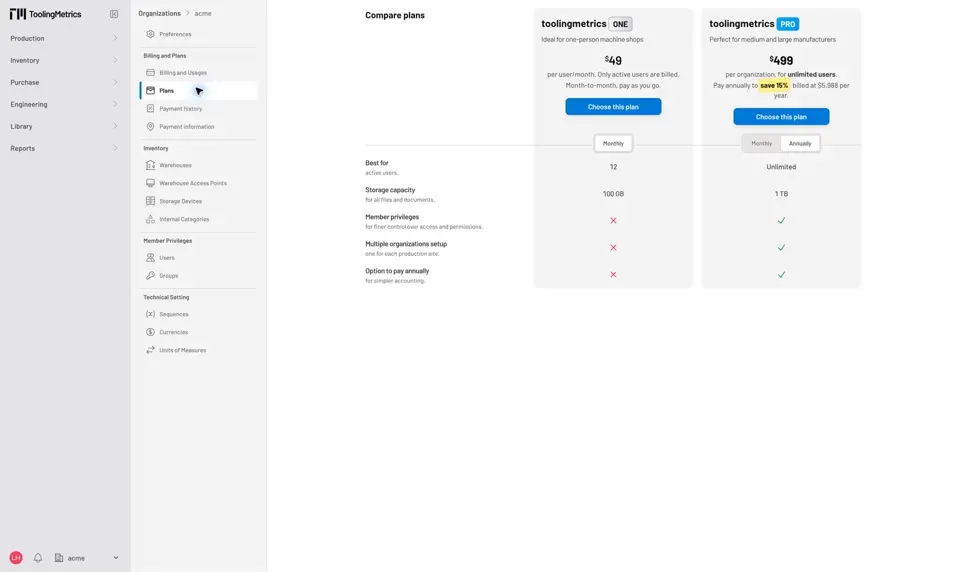
Fig. 1: Plan selection — compare plans and billing periods before choosing.
Switch between plans
Section titled “Switch between plans”To upgrade or downgrade to a different plan or billing period:
- In the admin sidebar, click Billing and Plans → Billing and Usages.
- Click Switch plan.
- On the plan selection page, the current plan is marked Current plan. Click Switch to this plan on the plan you want to move to.
- A preview shows the immediate transaction: any credit from unused days on the current plan, the charge for the new plan, and the amount due today.
- Click Yes, switch to the new plan to proceed.
Plan switches take effect immediately using prorated billing — you are credited for unused time on the current plan and charged for the new plan from today. The preview on step 4 shows the exact amount before you confirm.
Update the payment method
Section titled “Update the payment method”- In the admin sidebar, click Billing and Plans → Billing and Usages.
- Click View subscription details.
- Click Update payment method.
- The Paddle payment update screen opens. Enter the new card details.
- Save. The new card is used for all future payments.
Cancel a subscription
Section titled “Cancel a subscription”- In the admin sidebar, click Billing and Plans → Billing and Usages.
- Click View subscription details.
- Click Cancel subscription.
- A confirmation modal explains the consequences:
- No further charges after the current period ends.
- All users lose access on the cancellation date.
- Data is kept for 180 days after the subscription ends, then deleted within 30 days. Database backups are kept for 30 days.
- Click Cancel subscription in the modal to confirm. (Keep subscription closes it without canceling.)
The subscription status changes to canceling. The plan remains active until the end of the current billing period, so users retain full access until that date. The Billing and Usages page shows the cancellation date.
Reactivate a scheduled cancellation
Section titled “Reactivate a scheduled cancellation”If you cancel but change your mind before the cancellation date:
- In the admin sidebar, click Billing and Plans → Billing and Usages.
- Click Don’t cancel (shown when status is canceling).
The scheduled cancellation is removed and the subscription continues as normal at the next renewal date.
- All payment processing is handled by Paddle. Tooling Metrics does not store card numbers or payment method details.
- The billing address entered during subscription is used for VAT and tax calculation. Update it under Billing and Plans → Payment information if your company details change.
- Invoices for all past payments are available under Billing and Plans → Payment history.
- For field definitions on plans and allowances, see Plans Reference.


© 2026 ToolingMetrics. All rights reserved.