Prepare tools for a job
Create a tool in Tooling Metrics, pick its components from the warehouse, assemble it, and move it to a machine.
Prerequisites: A Tool Assembly design exists in the Library, or a released job if you’re using the Setup Assistant. Components are in stock.
Required permission: Production → Tools — User or above to create and release a tool (Admins can release any tool; Managers and Users only the tools they created); Inventory → Pick Lists — User or above to validate the pick lists; Production → Tool Transfers — User or above to move the tool to a machine.
For a whole job at once, use Engineering’s Setup Assistant — it reads every operation in the job and generates the Tool records, Tool Transfers, and Pick Lists needed in one step. The steps below cover preparing one tool at a time, which is also what the Setup Assistant does under the hood for each tool it creates.
Create a tool
Section titled “Create a tool”- In the sidebar, click Production → Tools → + Create.
- Select the Tool Assembly this tool is built from (or a Category for an ad-hoc tool with no assembly).
- Choose the Location and enter the Name; the current form does not include a Life Limit field.
- Save. A Tool ID is assigned automatically and the tool starts in Draft status.
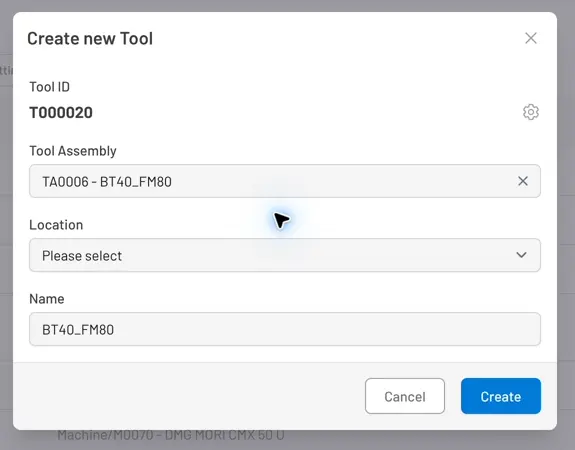
Fig. 1: Create new Tool — choose the assembly and location, then confirm or edit the suggested name. The current form has no Life Limit field.
Generate a pick list for its components
Section titled “Generate a pick list for its components”- On the tool record, click Create Picklist.
- Tooling Metrics checks the Tool Assembly’s bill of materials against what’s already on the tool, and searches each Warehouse Access Point for the remaining components.
- A Pick List is created per WAP that has stock for the remaining items.
Process the pick list
Section titled “Process the pick list”Follow Process a pick list to pick the components — either from the office Pick Lists list or at the WAP terminal.
Assemble the tool
Section titled “Assemble the tool”- As each pick list line is validated, the picked items land on the tool — the tool’s Items List tab shows what’s currently mounted, and Assembly History logs the move itself.
- Physically mount the components onto the tool, following the assembly drawing (open it from the tool record’s assembly-viewer icon). Each serialized piece’s condition is updated by the stock moves you validate — see Track tool condition.
- Once every required component is on the tool, it’s marked Completed automatically. You can also toggle this manually with Mark as Completed / Mark as Incomplete.
- Click Release, then print a Tool Tag — a barcode/data matrix label carrying the Tool ID — to attach to the physical tool.
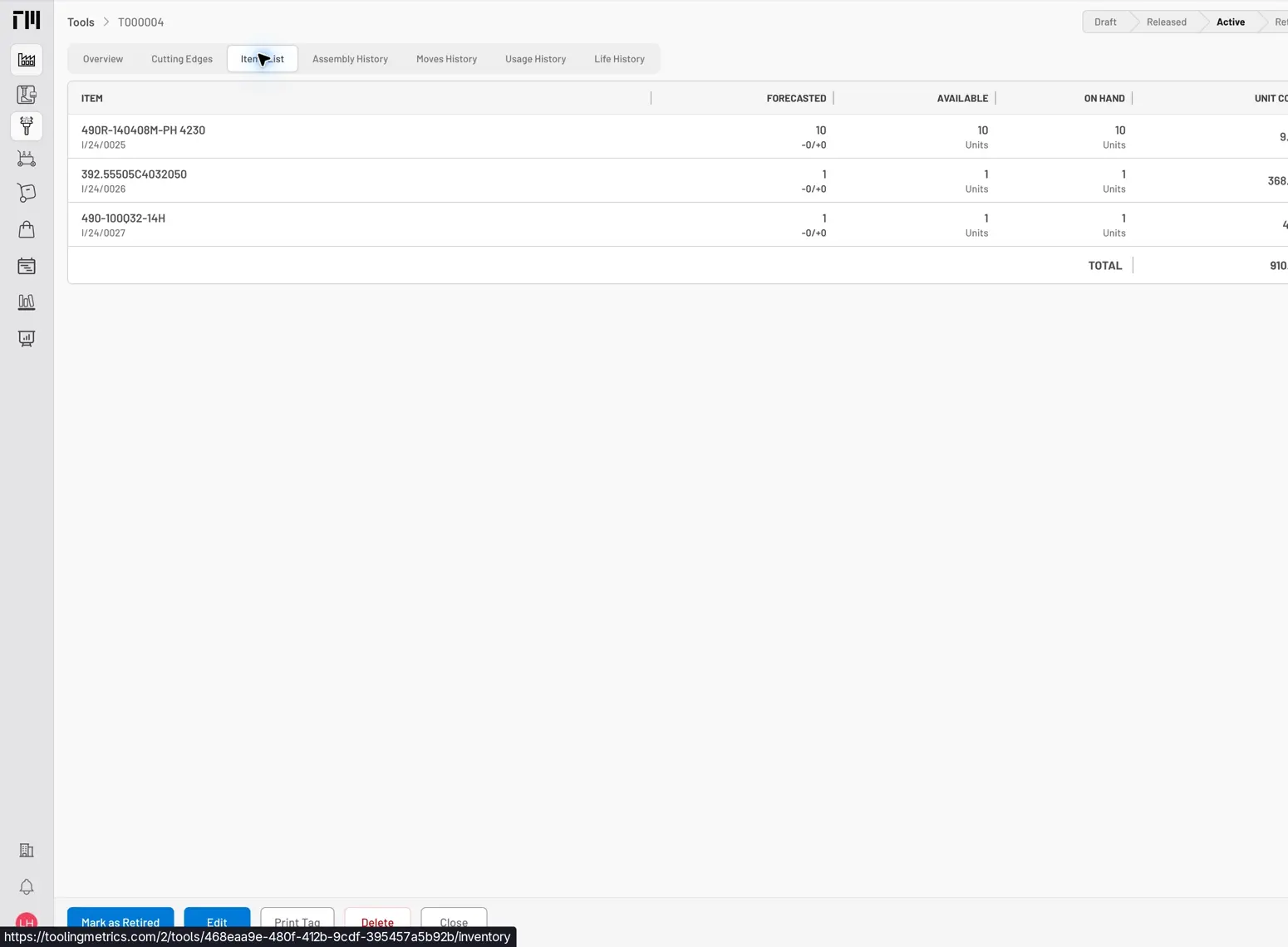
Fig. 2: Items List — components appear here as their pick lists are validated. This active tool shows Mark as Retired and Print Tag in its action bar.
Move the tool to a machine
Section titled “Move the tool to a machine”A tool reaches a machine one of two ways: directly on a Pick List (when its destination is set to the Machine instead of the tool’s assembly station), or afterward via a Tool Transfer from the WAP to the Machine, created and processed at the WAP terminal:
- At the WAP, open Tool Station → Tool Transfers. Under New Tool Transfer to, click the destination machine.
- Add the tool(s) from the inventory panel, then click Create. The transfer is created in Waiting status.
- Click Check Availability, then Validate.
- Validating moves the tool’s location to the machine — it now appears in the machine’s tool crib, ready for a slot number — and posts usage cost for every cost-per-pick item currently assembled in it.
To assign the tool a slot number in the machine’s tool crib, see Manage a tool crib.
- The Setup Assistant can be re-run for the same job; it skips tools that already exist in the right location.
- Tool Tags use the Tool ID’s data matrix code for scanner-based tracking at the WAP.


© 2026 ToolingMetrics. All rights reserved.