Set up automatic service pick
Turn on the preference, put For service stock rules in place, and confirm a Service Order to have Tooling Metrics build its Service Pick — and any Return List it needs — for you.
Prerequisites: A vendor and at least one item with Service Info configured exist (see Create a service order).
Required permission: Admin Center access (organization owner or a member of the <org-name>-admins group) to turn the setting on; Inventory → Stock Rules — User or above to create stock rules; Purchase → Purchase Orders — User or above to confirm Service Orders (Admins can confirm any order; Managers and Users only the orders they created).
Step 1 — Check the preference
Section titled “Step 1 — Check the preference”Automatic creating Service Pick is on by default for every organization — most shops don’t need to do anything in this step beyond confirming it’s still on, or turning it off if a person should choose collection locations instead.
- At the bottom of the sidebar, click your organization name → Manage Organizations.
- Click your organization’s name in the list to open its settings.
- The Preferences tab opens by default. Scroll to the Purchase Preferences section.
- Under Service Orders, confirm Automatic creating Service Pick is checked (or uncheck it here to turn the automation off).
- Click Update.
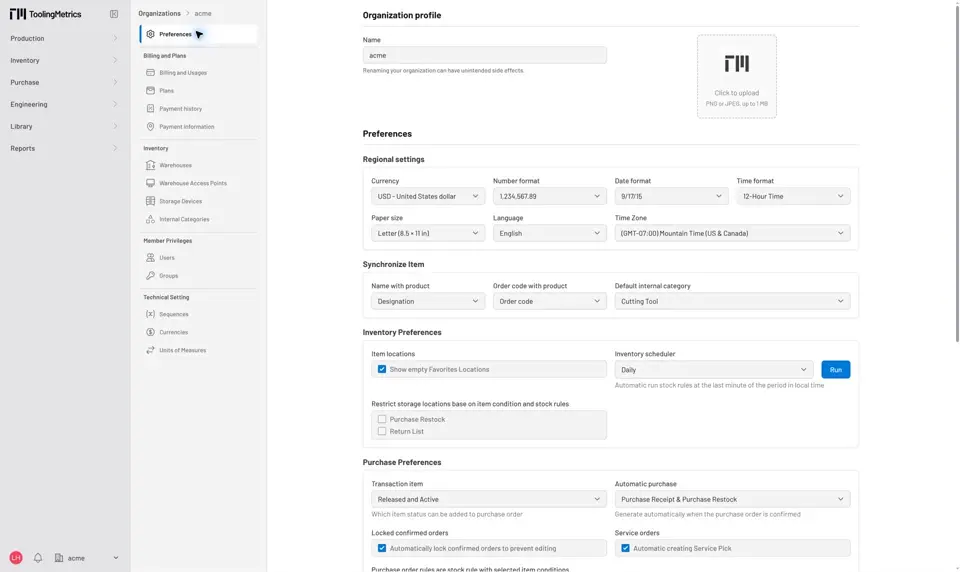
Fig. 1: The preference lives under Purchase Preferences — Service Orders, and is checked (on) by default.
This only affects orders with the Service Order flag set — ordinary Purchase Orders are untouched (see Configure automatic purchase receipts and restocks for that side). If it’s already on, as it is out of the box, the next confirmed Service Order will use it without any further setup here.
Step 2 — Add a For service stock rule for each bulk item
Section titled “Step 2 — Add a For service stock rule for each bulk item”A bulk item (an insert, a generic holder — anything tracked only by quantity) has no way to tell the automation which units on the shelf need service; only a stock rule can say where sorted-for-service stock physically lives. Without one, the automation skips that item’s line entirely — and, if the item has Service Info configured (making it serviceable), notifies the warehouse’s administrator instead of guessing.
- In the sidebar, click Inventory → Stock Rules → + Create.
- Select the Item.
- Set Item Condition to For service.
- Select the Storage Location where units awaiting service are physically kept.
- Set Threshold Quantity and Max Capacity, then click Create.
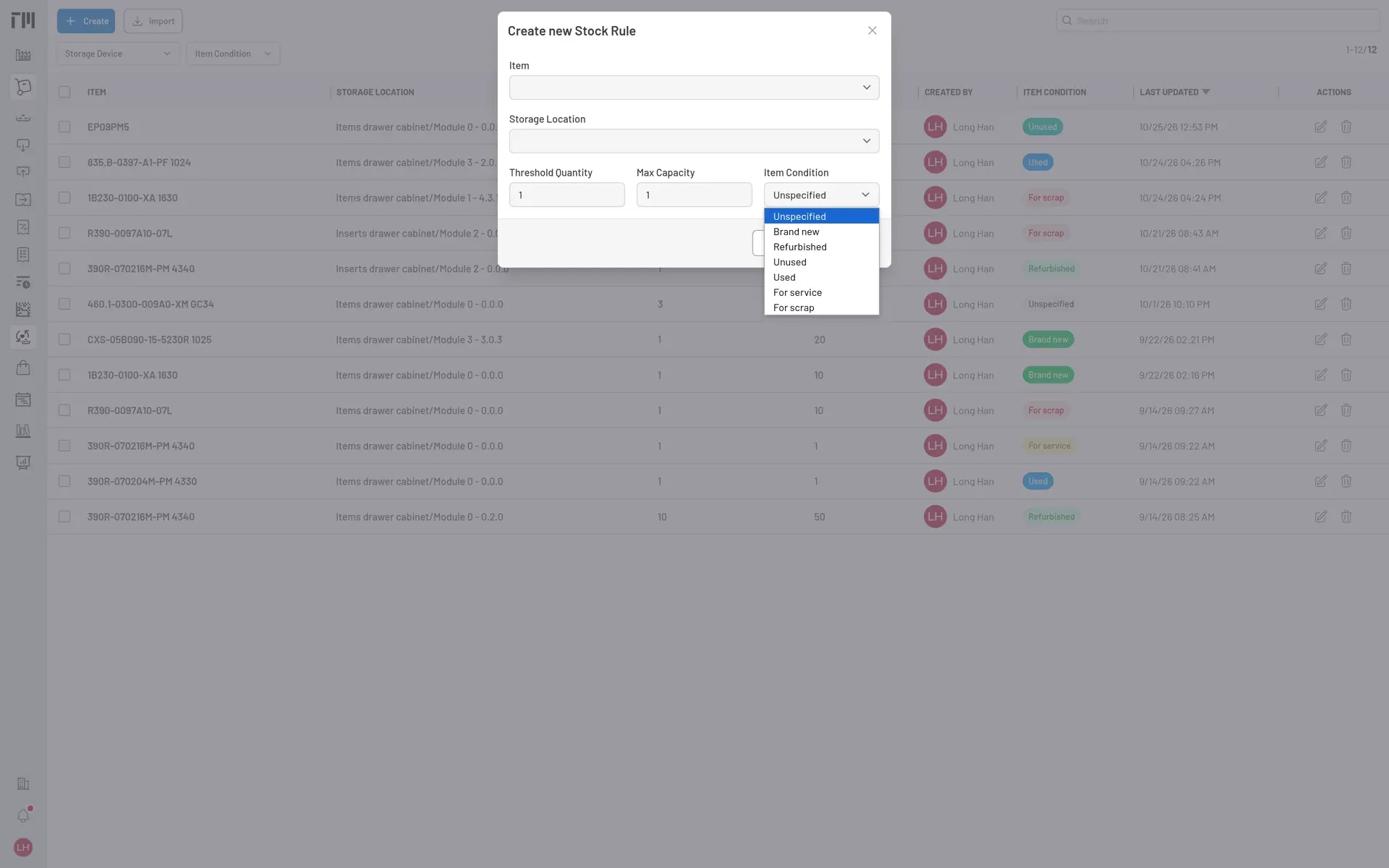
Fig. 2: Choose For service from Item Condition to make a bulk item eligible for automatic picking.
Repeat for every bulk item you want this automation to pick. See Define stock rules for the full field reference.
Step 3 — Add a For service stock rule for a serialized item’s return destination
Section titled “Step 3 — Add a For service stock rule for a serialized item’s return destination”A serialized item (a tool with its own ID) doesn’t need a rule to be found — each unit already knows whether it needs service from its own condition (Need service), wherever it’s currently sitting. A rule only becomes necessary when a candidate unit is still loaded into a Tool out on the shop floor: something has to tell the automation where to send it back to before it can build the pick. Follow the same steps as Step 2 — Item, Item Condition For service, Storage Location — for any serialized item you expect might need service while still mounted in a tool.
If more than one For service rule exists for the same item, the automation fills each rule’s location up to its Max Capacity before spilling into the next one. See How Automatic Service Pick Works — Picking serialized items for the full logic.
Step 4 — Confirm a service order
Section titled “Step 4 — Confirm a service order”- Open a Sent Service Order with at least one line whose Quantity is greater than what’s already been sent (see Create a service order).
- Click Confirm Order.
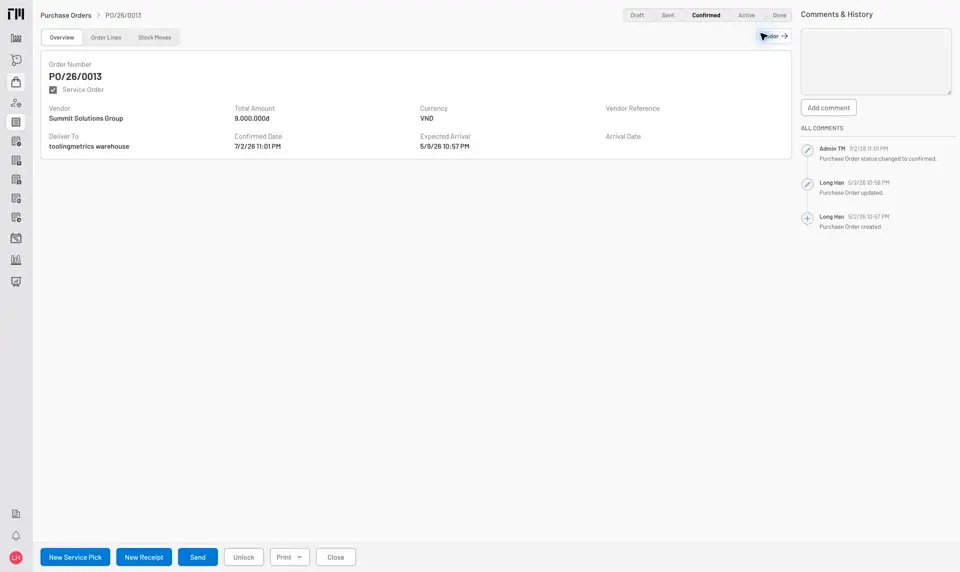
Fig. 3: Confirming is the only trigger — there’s no separate button to run the automation.
The automation runs in the background right after confirming; give it a few seconds on a larger order before checking the results.
Step 5 — Find what it built
Section titled “Step 5 — Find what it built”- In the sidebar, click Purchase → Service Picks. A new pick appears for each Warehouse Access Point the order’s items span — numbered from the same Picklist sequence as a manually created pick, with a comment in its history saying the confirmed order created it.
- If a unit had to come back from a tool first, click Inventory → Return Lists to find the matching Return List. That unit only lands on the Service Pick once the return is validated.
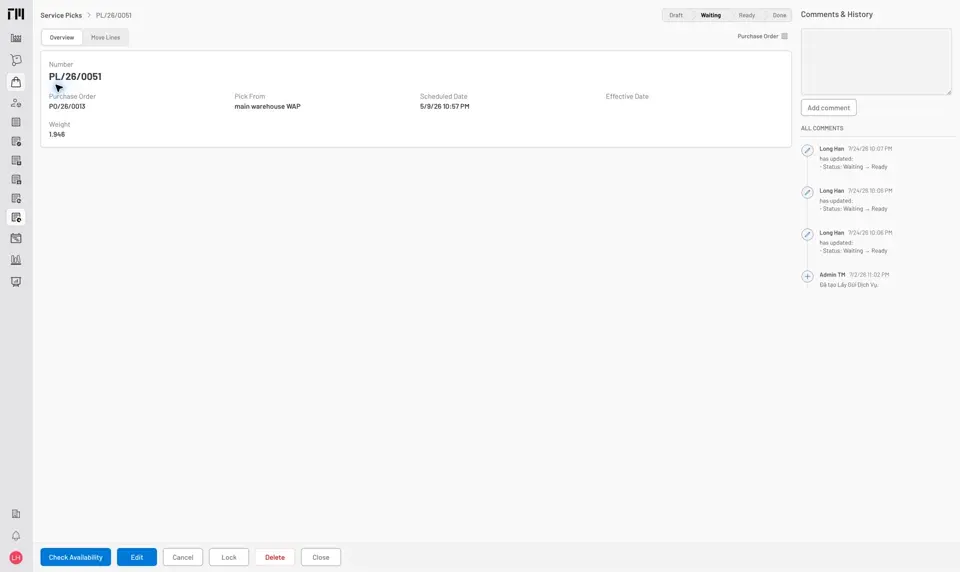
Fig. 4: An automatically created pick is a normal Service Pick — the comment is the only thing that marks it as system-generated.
From here, work the pick (and any return list) exactly as you would a manual one — see Service Orders — Service Pick and Return Lists Reference.
When a stock rule is missing
Section titled “When a stock rule is missing”If Step 2 or Step 3 was skipped for an item, the automation doesn’t fail silently — it notifies whoever can fix it:
- Serviceable bulk item, no For service rule in the order’s warehouse: the warehouse’s administrator gets a notification: “[item] has no For service stock rule yet — add one so service picks route automatically.” That order line stays unpicked. (A bulk item without Service Info configured — not serviceable in the first place — is skipped just as silently, with no notification, since there’s no rule to configure for it.)
- Serialized item stuck on a tool, no For service rule for that item: both the tool’s owner (“[item] in your tool [tool] needs to go back to storage for servicing.”) and the location’s administrator (same missing-rule message as above) are notified.
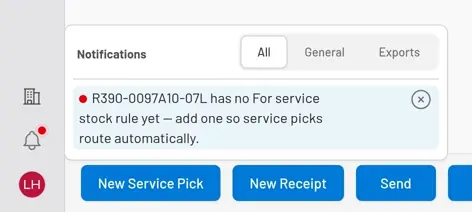
Fig. 5: Watch the bell icon at the bottom of the sidebar after confirming — a missing rule shows up in Notifications, not as an error on the order.
To recover: add the missing For service rule (Step 2 or 3), then finish that order’s remaining lines with New Service Pick as usual — the automation only runs once, at the moment of confirming, so it won’t retry on its own.
- The automation commits stock to a pick the moment the order is confirmed, before anyone reviews what got picked. If your shop wants a person choosing collection locations instead, turn the preference off (Step 1) and keep using New Service Pick manually.
- For the full decision logic — bulk vs. serialized, how shortfalls and duplicate lines are handled — see How automatic service pick works.


© 2026 ToolingMetrics. All rights reserved.