Use the machining calculator
Find optimal speeds and feeds for a tool-material combination, check machine power requirements, and save the result as cutting data.
Prerequisites: A tool assembly in the library whose cutting product has at least one operation set. A material with kc data adds power and torque to the results.
Required permission: Library → Tool Assemblies — User or above. Admins can add and edit cutting data on any tool assembly; Managers and Users only on tool assemblies they created.
The machining calculator is the cutting data form on a tool assembly. Use it to determine or verify cutting parameters for a tool-material combination. It computes spindle speed, feed rate, MRR, and power in real time as you adjust inputs, and saves the result as a cutting data entry on that assembly.
Open the calculator
Section titled “Open the calculator”- In the sidebar, click Library → Tool Assemblies and open the assembly you are calculating for.
- Click the Cutting Data tab. Each cutting product in the assembly has its own row; expand the row for the cutting product.
- Click ⊕ under that row. The Create new Cutting Data form opens. To refine an existing entry, open that entry from the same list instead.
The form fills the cutting diameter, corner radius, number of edges, and approach angle automatically from the cutting product’s ISO 13399 parameters.
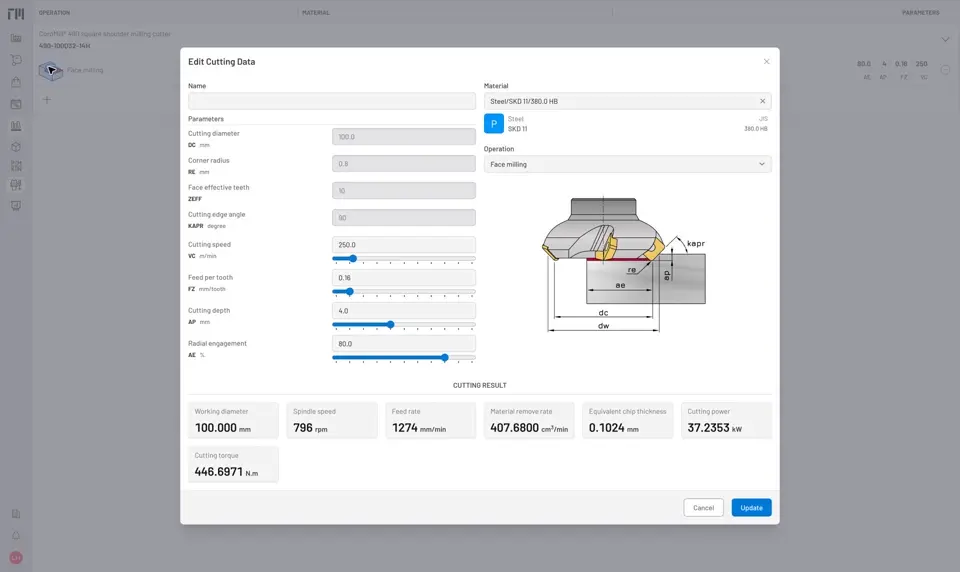
Fig. 1: The tool geometry fields are filled automatically from the cutting product’s ISO 13399 parameters.
Select the material and operation
Section titled “Select the material and operation”- In the Material field, search for and select the workpiece material. The field starts at C45; material is required.
- Select the Operation. The list only offers the operations set on the cutting product (Face milling, Drilling, External turning, etc.).
- Optionally enter a Name for the entry (e.g., a roughing or finishing condition).
Adjust cutting parameters
Section titled “Adjust cutting parameters”Review and adjust the editable inputs:
| Field | What to set |
|---|---|
| Vc | Cutting speed from the manufacturer’s catalog for this tool-material combination. |
| fz | Feed per tooth (milling, drilling) or feed per revolution (turning). |
| ap | Axial depth of cut for this pass. |
| ae | Radial engagement as % of cutting diameter. Milling only. |
| dm | Workpiece or bore diameter. Turning, boring, parting, grooving, and threading only. |
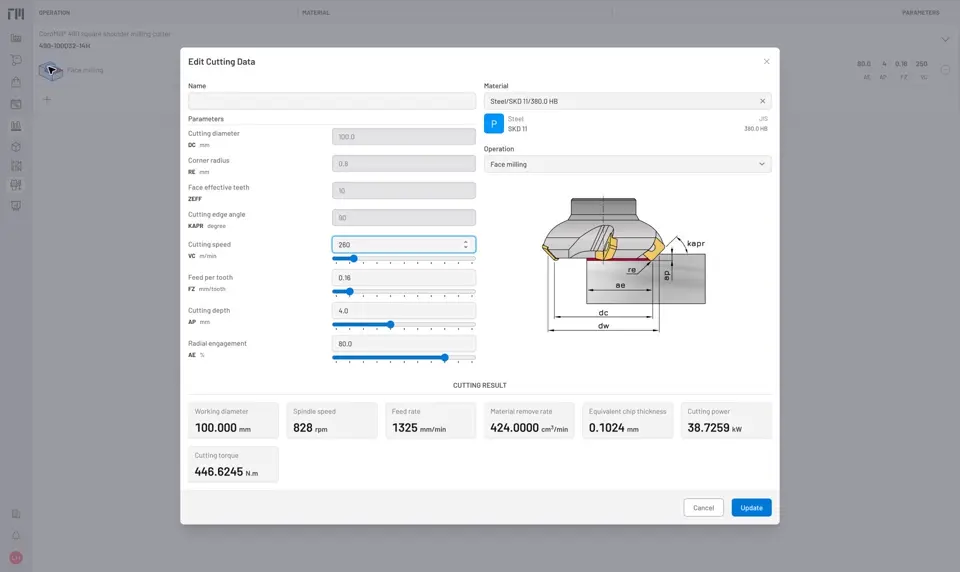
Fig. 2: All inputs filled — the results panel updates in real time as you change any value.
Read the results
Section titled “Read the results”The results panel updates instantly. Check:
- n — Spindle speed (rpm). Compare against the machine’s maximum spindle speed.
- vf — Feed rate (mm/min). Compare against the machine’s maximum feed rate.
- Q — Material removal rate. Indicates how aggressive the cut is.
- Pc — Cutting power (kW). Compare against the machine’s rated spindle power. If Pc exceeds the machine’s power, reduce Vc or ae.
- Tc — Torque (Nm). Verify the spindle can sustain this torque at the programmed speed.
Power and torque are only shown when the selected material has a specific cutting force (kc) value defined. If these fields are blank, the material database does not have kc data for this material.
Unit system
Section titled “Unit system”The form uses the Unit System from your user settings: metric (m/min, mm) or inch (sfm, in). The entry is saved in that unit system.
Save the cutting data
Section titled “Save the cutting data”When the parameters look right, click Create (or Update when editing an existing entry).
The values are saved as a cutting data entry on the tool assembly for that material and operation. The entry then appears as an option in the Cutting Data dropdown when adding this assembly to a project operation, and pre-populates the setup sheet with the saved parameters.
- If you adjusted parameters from a manufacturer starting point, save the adjusted values — they reflect what actually worked in your shop, which is more useful than the catalog defaults.
- For field definitions and formula details, see Cutting Data Reference.


© 2026 ToolingMetrics. All rights reserved.