Troubleshoot a GTC import
Diagnose a Tooling Metrics GTC import that failed, aborted, or finished without the products you expected.
Prerequisites: You attempted an import following How to import products from a GTC package.
Required permission: Library → Products — User or above.
Every import — successful or not — produces a report. Start there.
Read the import report
Section titled “Read the import report”- Click the bell icon at the bottom of the sidebar to open Notifications.
- Find the import notification. If the import stopped before it finished, the message starts with “Import stopped at” and says that the report has the reason.
- Download the attached import report, named after the package’s manufacturer and ID (
<manufacturer> - <acronym> (<package id>).txt). It logs each stage of the import and names the exact point where an import was aborted.
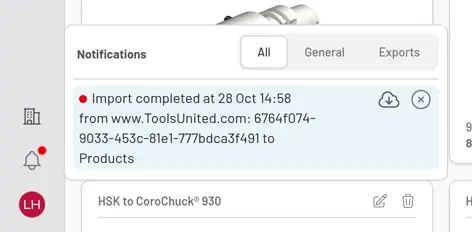
Fig. 1: The import notification — the attached report tells you exactly what happened, stage by stage.
Common causes and fixes
Section titled “Common causes and fixes”“The package ZIP file was not found.”
Section titled ““The package ZIP file was not found.””No file reached the server. Re-open the import dialog, click Choose File, and confirm the file is selected before clicking Import.
The import button never appears, or stays disabled
Section titled “The import button never appears, or stays disabled”- Toast “This package has no package_meta_data.xml. Choose a GTC package ZIP file.” — the selected file doesn’t contain
package_meta_data.xmlat its root, so it isn’t a GTC package. It may be a plain product list, a renamed folder, or a partial download. Re-download the package from the vendor and select the original.zipwithout re-zipping it. - Toast “Unable to read the ZIP file: <error>” — the zip itself is corrupt or its
package_meta_data.xmlis malformed. Re-download the package. - Button visible but greyed out with a progress bar still moving — the file is still uploading to the server in the background. Wait for it to finish; Import enables automatically. If it stops moving with toast “Unable to upload the package: <error>”, the connection dropped mid-upload — reselect the file and retry on a stable connection.
Report says “The catalog already has …’s package from … This one … isn’t newer, so its products weren’t imported.”
Section titled “Report says “The catalog already has …’s package from … This one … isn’t newer, so its products weren’t imported.””This is not an error. The catalog already holds a package of this manufacturer created on or after this one’s date, so there is nothing new to import. If the vendor has released new products, download their latest package; its newer creation date will let the import proceed and update existing records. An organization’s own import is not held back by this date.
Report says “This package is for GTC generic hierarchy X, but … uses Y, so its products weren’t imported.”
Section titled “Report says “This package is for GTC generic hierarchy X, but … uses Y, so its products weren’t imported.””The package was built for another version of the GTC generic class hierarchy than the one the manufacturer’s catalog data uses. Ask the vendor for a package built for version Y, or contact support to confirm when version X will be supported.
Import succeeded but products are missing
Section titled “Import succeeded but products are missing”- Click the Products icon in the sidebar to refresh the list — the import runs in the background and the open page does not refresh itself.
- Products already present in the shared catalog are skipped on purpose — search the catalog by manufacturer and product number before assuming a product was lost.
- Check the report for per-product warnings; individual records with malformed data are skipped while the rest of the package imports normally.
Some products from the package are not in my organization catalog
Section titled “Some products from the package are not in my organization catalog”If a product in the package has the same Manufacturer and Product Number as a product in the shared catalog, that product is skipped on purpose: the shared product is used and your imported data for it isn’t saved. This is expected; search the Products list and you’ll find the shared product. If you need your own data for that product instead, contact support.
Import succeeded but 3D models or drawings are missing
Section titled “Import succeeded but 3D models or drawings are missing”Assets are only imported when the vendor includes them in the package. Smaller vendor packages often contain parameter data only. Attach missing files manually on the product record, or request the full asset package from the vendor.
The notification says “Import stopped at” and the report ends with “Stopped by an error”
Section titled “The notification says “Import stopped at” and the report ends with “Stopped by an error””The import job stopped on an error. The report keeps everything done before the error and says what to do: upload the package again if it was no longer on the server, ask the vendor for a corrected package if a file in it couldn’t be read as XML, or import it again if something went wrong on our side. If it fails the same way again, send the report to support; its last line carries the detail support needs. A product whose technical data couldn’t be imported is listed the same way, as “skipped” with the reason.
Still stuck
Section titled “Still stuck”Send the import report file and the package name to support — the report pinpoints the failing stage and makes diagnosis fast.


© 2026 ToolingMetrics. All rights reserved.