Document a multiple-setup project
Plan a part that requires more than one clamping or fixture on the same machine as a single coordinated project.
Prerequisites: A part exists. Tool assemblies are set up in the Library.
Required permission: Engineering → Projects and Jobs — User or above. Admins can change, release, and approve any project or job; Managers and Users only the projects and jobs they created.
A multiple-setup project is for parts that require two or more clamping changes on a single machine — for example, machining Side A in Op 10, flipping the part, and machining Side B in Op 20, both on the same machining center. All setups share one project, one release, and one coordinated setup sheet sequence.
This is distinct from a project where different operations run on different machines (a mill and a lathe, for example). For that case, leave Multiple jobs setup disabled and add jobs with different machines.
Create the project with multiple jobs setup enabled
Section titled “Create the project with multiple jobs setup enabled”- In the sidebar, click Engineering → Projects.
- Click + Create.
- Enter the project Name.
- Check Multiple jobs setup.
- Click Create.
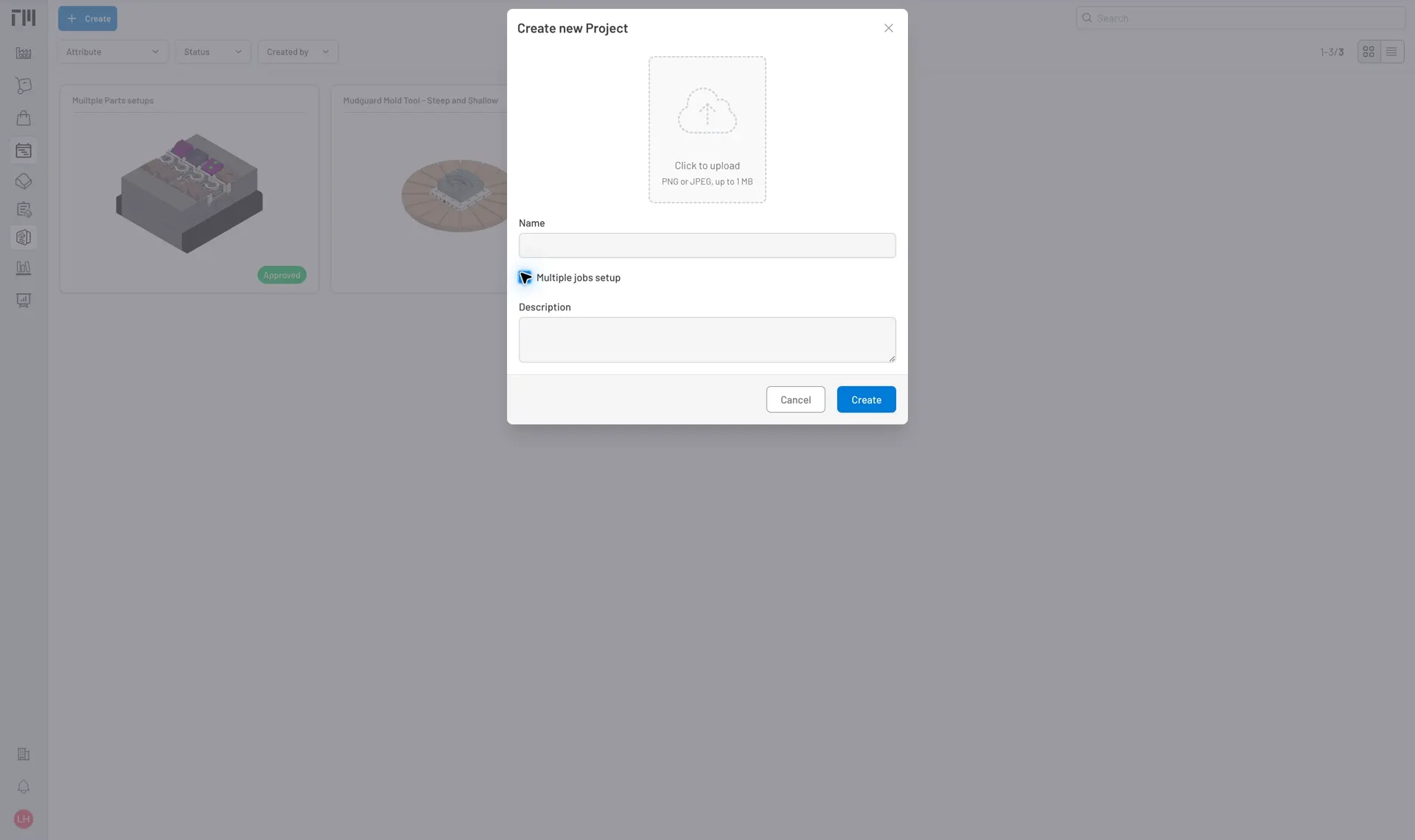
Fig. 1: Enable Multiple jobs setup when all jobs in the project will run on the same machine; select the machine on each job after creating the project.
With Multiple jobs setup enabled, every job added to this project must use the same machine. Tooling Metrics enforces this: adding a job with a different machine is not permitted.
Add one job per setup
Section titled “Add one job per setup”Each job represents one clamping of the part:
- Open the project and click the Process tab, then click + at the bottom of the job list.
- Enter the job Name to identify the setup (e.g., Op 10 – Side A, Op 20 – Side B).
- Select the Machine — this must be the same machine for every job in this project — and the Part.
- Click Create.
Repeat for each clamping change.
Add operations to each job
Section titled “Add operations to each job”- Open a job, click the Operations tab, and click + at the bottom of the operation list.
- Assign the Tool Assembly, Tool No., and Est. Cycle Time (in seconds) — all are required.
- Repeat for all operations in this setup.
- Return to the project and open the next job to do the same.
Tools that are reused across multiple setups (e.g., a face mill used in both Op 10 and Op 20) are assigned as separate operations in each job. The Setup Assistant accounts for this when preparing tools — it will not create duplicate tool records if the same assembly is already loaded in the machine.
Set tool numbers per job
Section titled “Set tool numbers per job”Tool numbers are set independently per job. If your machine requires tools to stay in the same pocket across setups, assign the same T-code to the same tool assembly in each job.
- Open a job, click the Tool List tab, and click Renumber at the bottom of the list.
- Assign tool numbers that match your machine’s tool magazine convention.
- Repeat for each job.
Release and approve the project
Section titled “Release and approve the project”- Open the project and click Release on the bottom toolbar.
All jobs are locked simultaneously for engineering-manager approval. Setup sheets can still be printed per job at any time, regardless of status — each sheet covers the tools and operations for that specific clamping. See the full status flow in the Projects Reference.
- Once reviewed, click Approve on the bottom toolbar.
Approve is the step that releases tool assemblies and syncs products to Inventory Items, across every job in the project at once.
Use the Setup Assistant at the project level
Section titled “Use the Setup Assistant at the project level”For multiple-setup projects, the Setup Assistant can be launched from the project level rather than from individual jobs — but only once the project has at least one operation. The link only appears when Multiple jobs setup is enabled and the project has at least one operation; a multiple-setup project with zero operations never shows the Setup Assistant entry point, regardless of its status. (A single-setup project never shows a project-level Setup Assistant link at all — it must be run per-job instead.)
- Open the project.
- Click Setup Assistant on the project toolbar.
- Follow the wizard — it presents all tool assemblies across all jobs in one list.
See Use the Setup Assistant for the full workflow.
- The Multiple jobs setup checkbox can only be enabled when all existing jobs in the project already use the same machine (or when there are no jobs yet).
- If you enable Multiple jobs setup after adding jobs with different machines, the setting is blocked until the conflicting jobs are reassigned.
- For CAM projects imported from Autodesk Fusion with multiple setups, Multiple jobs setup is set automatically based on the CAM file structure. See Import a CAM project.


© 2026 ToolingMetrics. All rights reserved.