Create a product manually
Register a single product from manufacturer-supplied files when no GTC package is available.
Use this guide when a vendor provides individual files — a .p21 data file, a STEP model, a DXF drawing — but no full GTC package. Also use it when creating a custom or internal tool that has no manufacturer data at all.
Prerequisites: You have at least one of: a .p21 data file, a .stp 3D model, a .dxf drawing, or product specifications from a catalog sheet.
Required permission: Library → Products — User or above. Admins can edit any product; Managers and Users only the products they created.
Create the product with a data file (recommended)
Section titled “Create the product with a data file (recommended)”If you have a .p21 file from the manufacturer, one form and one click populate the number, order code, barcode, connection codes, parameters, and operations.
- In the sidebar, click Library → Products.
- Click + Create.
- Select the Manufacturer. If the manufacturer does not exist yet, create it from the Manufacturer list first.
- Select the Class (ISO 13399 generic class, e.g.
DRLFSSfor solid drill). - Attach the
.p21file as the Data File, and any 3D models, drawing, or pictures you have (see Attach 3D models and drawings below). - Click Save & Parse Data File.
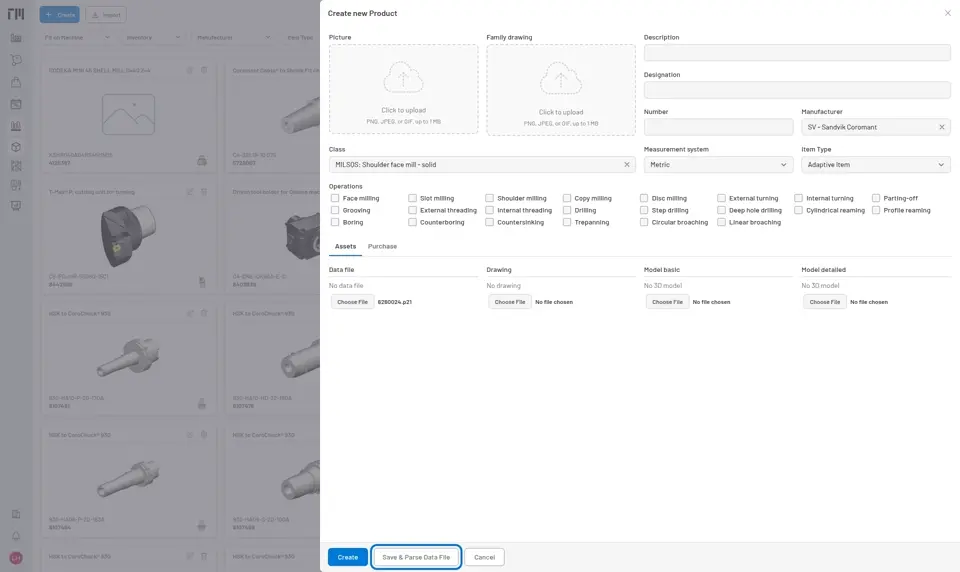
Fig. 1: Manufacturer and Class are required; everything else — including the Product Number — is parsed from the attached .p21 file.
The Product Number, designation, all parameters, operations, and connection codes are parsed from the file. Review the Parameters and Operations tabs on the saved product to confirm the values look correct — see How Operations Affect Downstream Workflows if Operations comes back empty.
Enter parameters manually (if no .p21 file)
Section titled “Enter parameters manually (if no .p21 file)”If no data file is available, save the product first, then fill in the key parameters from the manufacturer’s catalog sheet.
- Follow steps 1–4 above (Manufacturer, Class), enter the Product Number manually, and click Create.
- On the saved product, click the Parameters tab → + Add Parameter. Add the parameters relevant to this product type. Common ones:
| Code | Meaning |
|---|---|
DC |
Cutting diameter (mm) |
LF |
Functional length (mm) |
RE |
Corner radius (mm) |
ZEFF |
Effective number of teeth |
- Enter Connection Codes (machine-side and cutting-side) if known. These enable automatic assembly compatibility filtering.
- Set Operations manually if none are parsed — the machining calculator cannot calculate cutting data for a product with no operations.
Attach 3D models and drawings
Section titled “Attach 3D models and drawings”Attach whatever the manufacturer provides — every slot is optional:
- Basic Model — simplified
.stpfile (used in CAD Viewer for daily work) - Detailed Model — full-detail
.stpfile (used in Setup Sheet renders) - 2D Drawing —
.dxffile (viewable in the drawing viewer) - Picture — catalog photograph
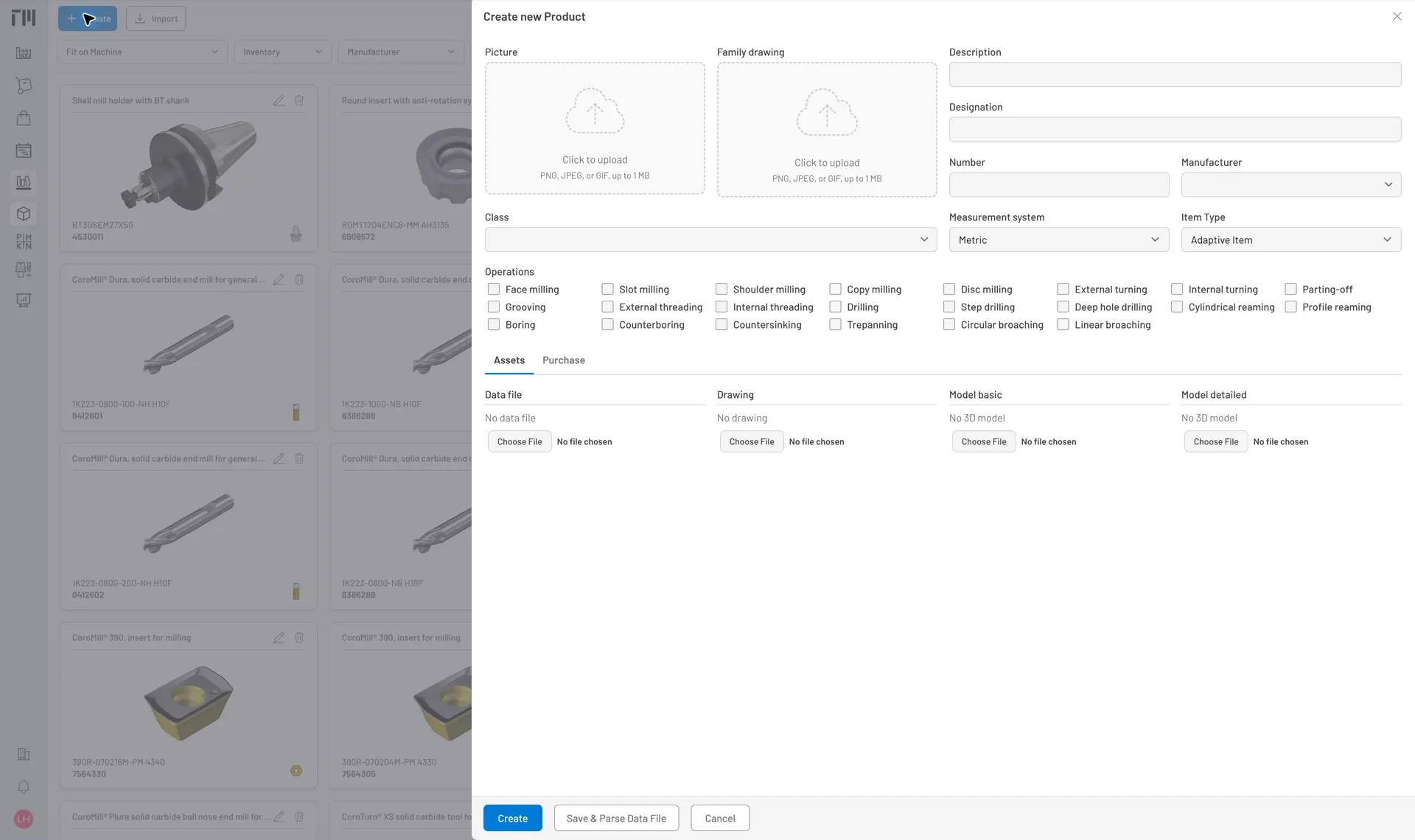
Fig. 2: Attachment slots on the product form — each accepts a specific file type.
Re-sync after the manufacturer updates the file
Section titled “Re-sync after the manufacturer updates the file”If the manufacturer releases a corrected or updated .p21 file for a product you already created:
- Open the product → Edit → replace the Data File → Update.
- On the product page, click Parse Data File in the bottom toolbar to re-parse it.
- A product without a
.p21file can still be used in tool assemblies and inventory — parameters, connection codes, and operations can be entered manually. - A product without a 3D model will appear as a blank space in the CAD Viewer but is otherwise fully functional.
- To import a full vendor catalog at once instead of product by product, see Import Products from a GTC Package.


© 2026 ToolingMetrics. All rights reserved.