Sync a product to an inventory item
Push a product's data into inventory so purchasing and stock tracking can begin.
Products in the Library and Items in Inventory are separate records that serve different purposes — a Product is a catalog specification, an Item is a stockable unit your team buys, stores, and picks. The Push to Item command bridges them: it creates a new Item from a Product or updates an existing one, copying all the data that purchasing and inventory need.
Prerequisites: The product record exists in the Library and has at least a Product Number and Manufacturer.
Required permission: Library → Products — User or above, and Inventory → Items — User or above. Push to Item only appears with the Items permission.
Sync a product to an item
Section titled “Sync a product to an item”- In the sidebar, click Library → Products and open the product.
- In the bottom toolbar, click Push to Item.
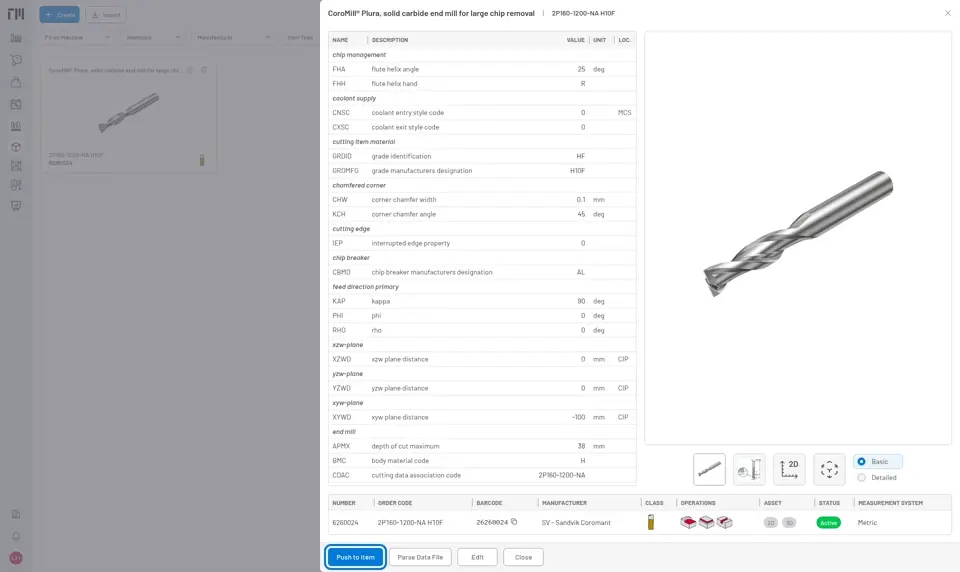
Fig. 1: Push to Item button in the product toolbar — runs once to create the item, or again to update it after the product data changes.
- The system creates or updates an Item record populated with:
- Name and multilingual designation from the product
- ISO 13399 class, parameters, and connection codes
- Order code, barcode, weight, and dimensions
- Item type (derived from the product class)
- A confirmation banner shows the item number. Click the link to open the new Item.
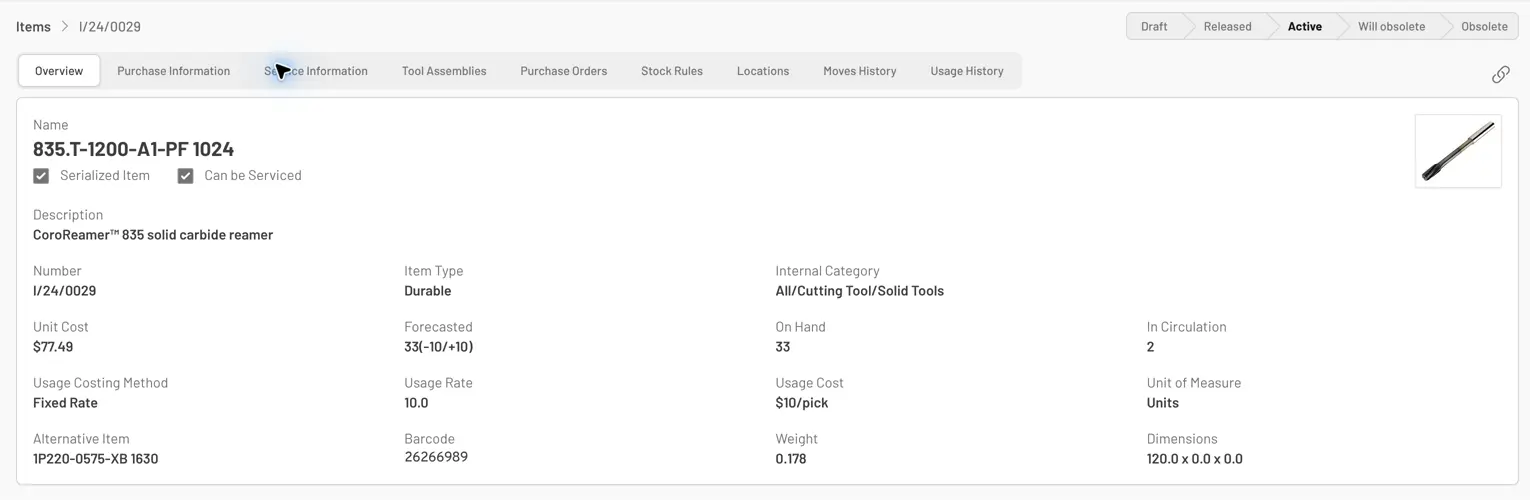
Fig. 2: The synced item Overview shows product-derived details such as its name, item type, and barcode.
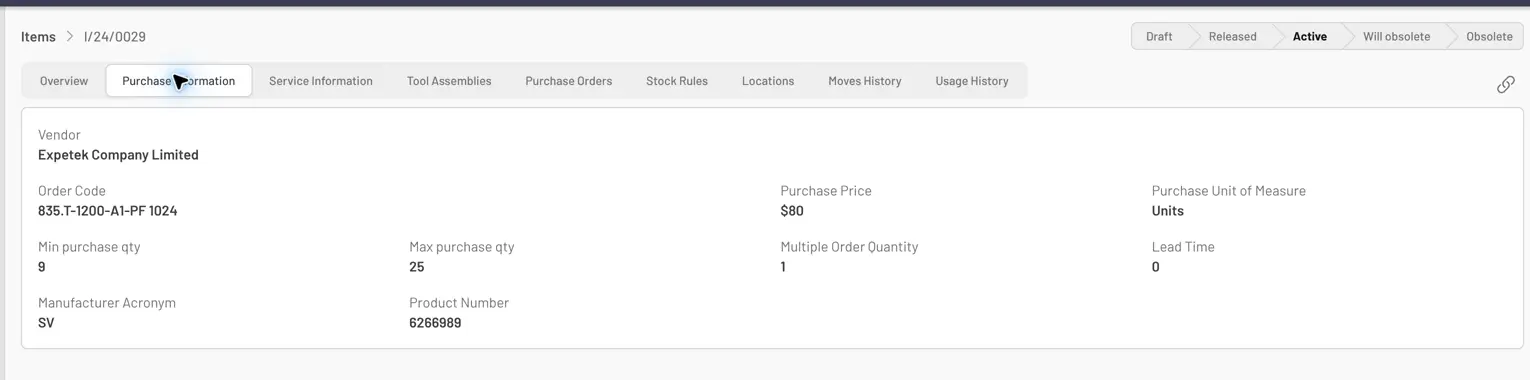
Fig. 3: The Order Code is copied from the product; vendor, purchase price, and lead time are managed in Purchase Information.
Complete the item’s purchasing info
Section titled “Complete the item’s purchasing info”Sync populates product data but not vendor-specific purchasing details — those need to be set once manually.
- Open the Item and click Edit.
- In the Purchase Info section, set the Default Vendor, Order Code, Purchase Price, and Lead Time.
- Click Update.
Re-syncing after a product update
Section titled “Re-syncing after a product update”If the manufacturer releases updated data (new .p21 file, revised parameters), run Save & Parse Data File on the product first, then run Push to Item again. The item is updated to match the latest product data without losing its purchasing info or stock history.
- Sync is non-destructive: running it a second time updates existing fields but does not delete any manually entered inventory data (vendor, price, stock rules).
- Sync also happens automatically, without visiting the product page: releasing a Tool Assembly syncs every product in it, and approving an Engineering Project syncs every product in its draft tool assemblies and releases them. Both use the same sync logic described here.
- To import a vendor’s full catalog and sync all products at once, see Import Products from a GTC Package.


© 2026 ToolingMetrics. All rights reserved.