Stage II: Engineering
Register the machine, document the production process, and release the project for purchasing and production.
Role: CNC Programmer / Process Engineer
Prerequisites: Stage I complete — product populated and tool assembly library built
Hands off to: Warehouse Manager / Inventory Controller (Stage III)
Demo part
Section titled “Demo part”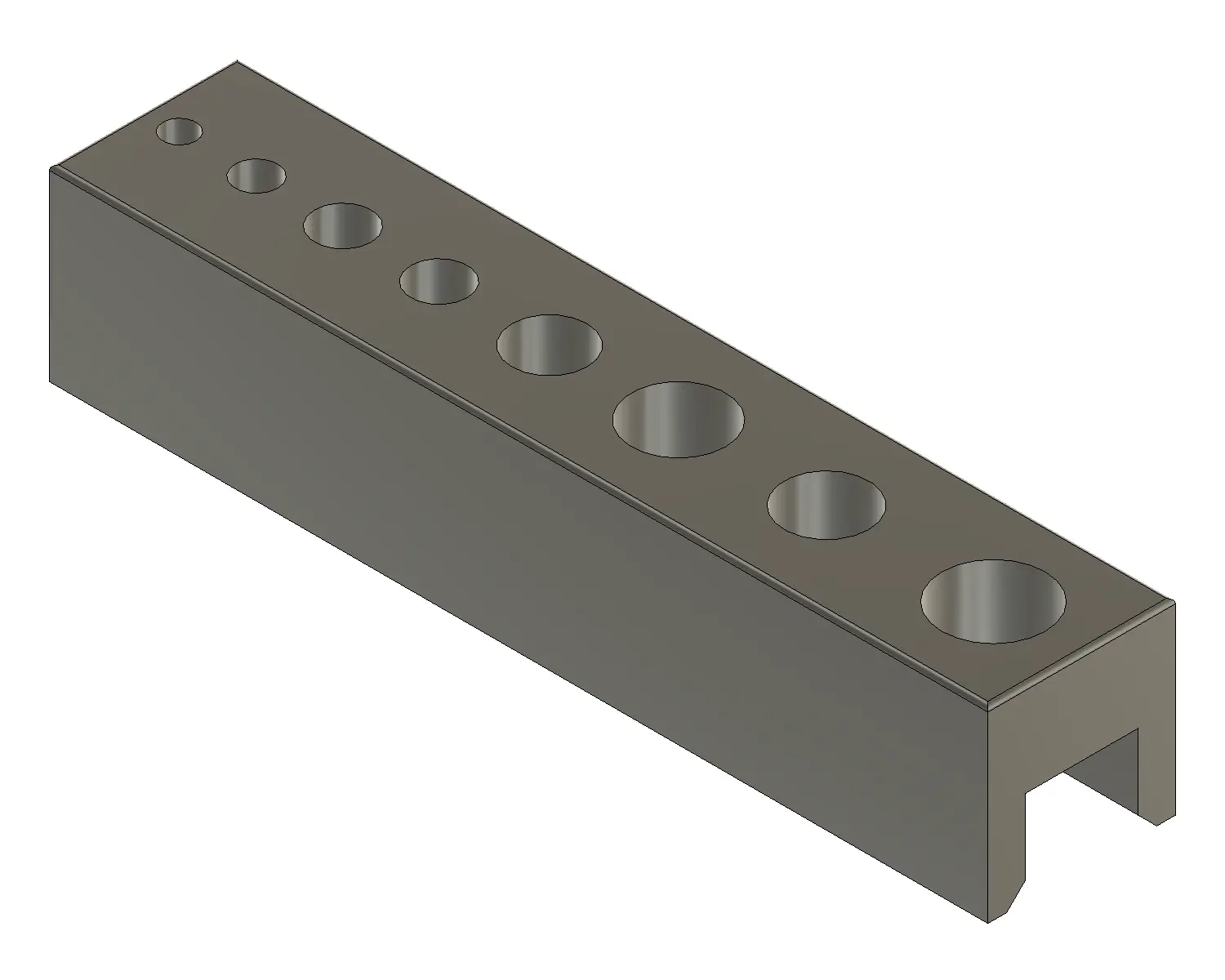
The part we will machine in this demo project is a Tap Guide Block — simple enough to program by hand or with CAM software. It starts from a solid rectangular blank in two setups: the first machines the top face (face milling, shoulder milling, and drilling holes from 3.5 mm to 11 mm), the second — from the opposite direction — adds a slot, a shoulder, and a chamfer. To keep small-batch production efficient, we combine both into one project using the multiple-setup strategy.
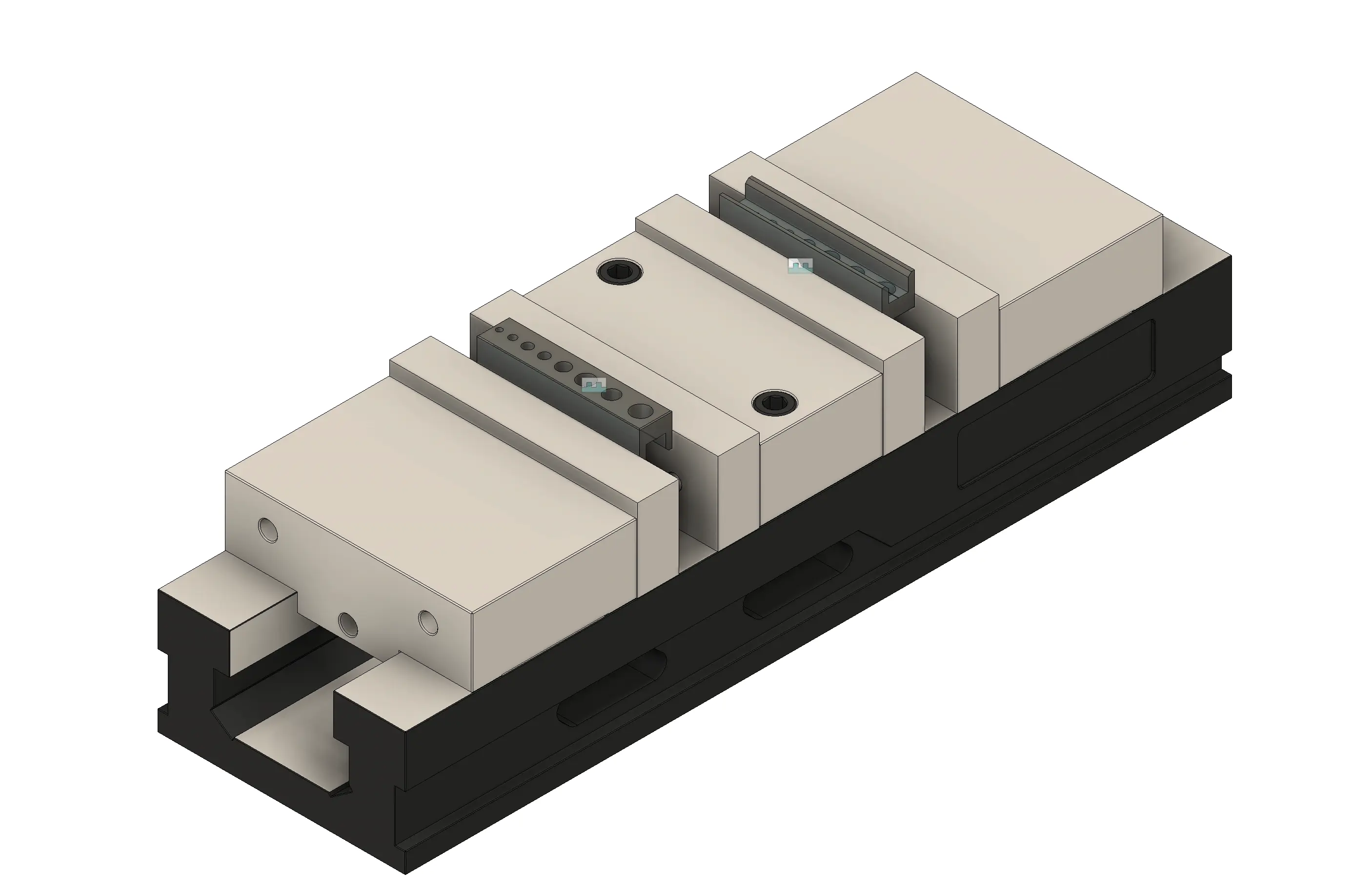
You can download the STEP model and the drawing (PDF / DXF).
Workflow
Section titled “Workflow”- Create the machine and set up its tool interfaces.
- Document the process with either your CAM software or the Process Designer.
-
Use the ToolingMetrics CAM Connect plugin to connect your CAM software to your tool library in Tooling Metrics. When finished, export all CAM data into a Tooling Metrics project. Download the starter CAM file and follow the tutorial for your CAM software.
CAM software Starter file Autodesk Fusion Download -
Use the Process Designer to enter the setups and operations manually.
-
- Release and Approve the project, which locks the project for editing and sends all tooling data to the other teams.
Outcome
Section titled “Outcome”The project is approved and its tool assemblies are released; every product in them is used to create inventory Items, most at zero on-hand. The Inventory Controller can start Stage III.


© 2026 ToolingMetrics. All rights reserved.