User interface
Descriptions of every interface area and component in Tooling Metrics.
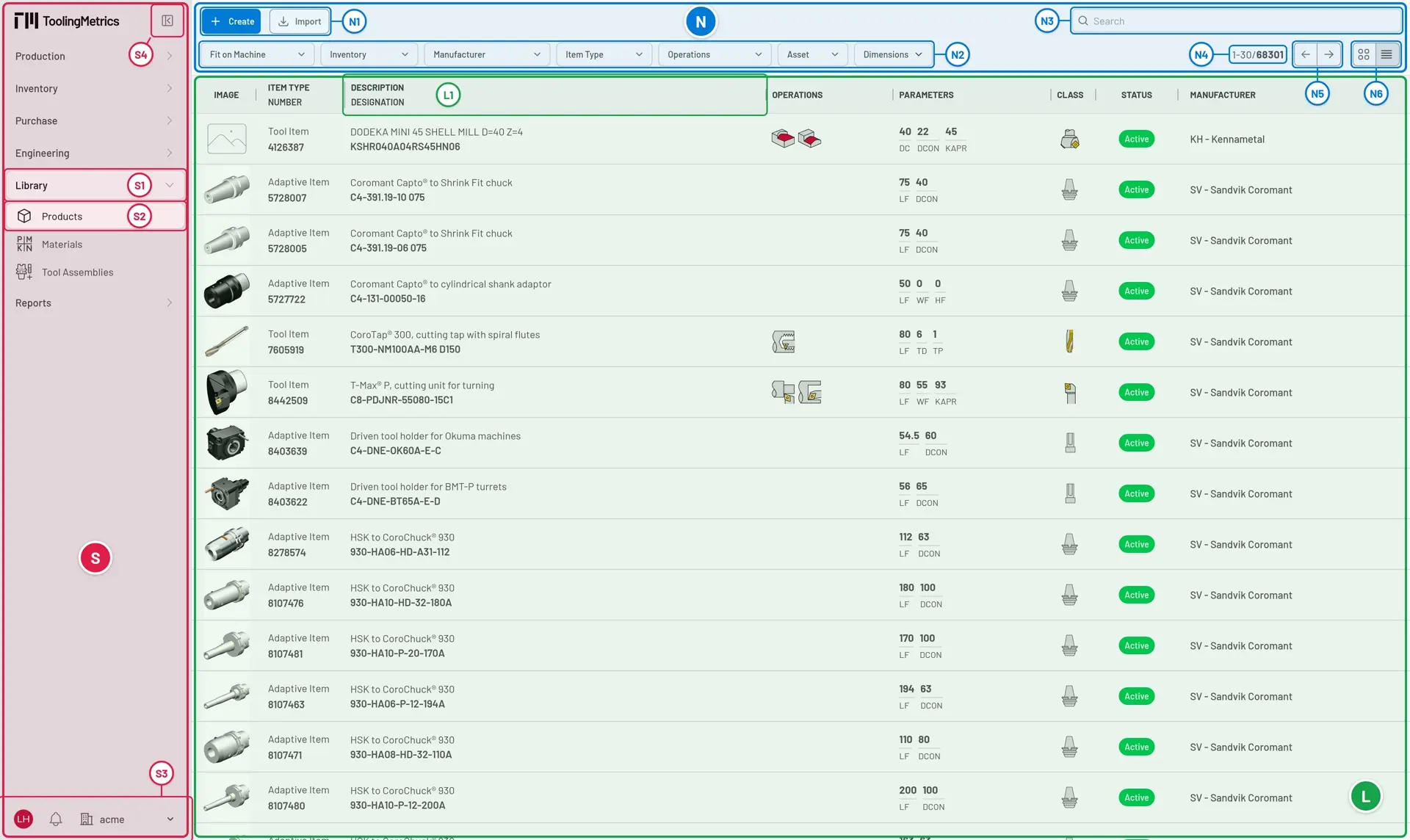
The Tooling Metrics interface is divided into three main areas: sidebar S, navigation bar N, and document list L. There is no top header: the logo, the modules, and your account, notifications, and organization all live in the sidebar.
Sidebar
Section titled “Sidebar”When the sidebar is expanded, the Tooling Metrics logo at its top returns you to the homepage.
S1— Active module highlight. The current module stays expanded for faster navigation.S2— Active document type. The selected document icon or name. All accessible records appear in the documents listL.S3— Sidebar footer, at the bottom of the sidebar:- Account — Your avatar. Opens Setting (update your profile, set language, measurement system, appearance, time zone, and API token), links to Documentation, Support, and Third-party notices, and Sign out. To switch the theme, choose Light, Dark, or System (matches your browser theme) under Appearance in Setting.
- Notifications — Bell icon. Opens on All; the General tab lists import results and system notices, the Exports tab the exported packages, ready to download. A red flashing dot indicates unread notifications.
- Organization — A building icon with your current organization’s name. Click it to switch to another organization you belong to, or, if you are a site owner or admin group member, to open Manage Organizations and the admin center. When neither applies, it only shows the name.
S4— Collapse/expand button, next to the logo at the top. Collapsed, the sidebar shows only icons, with each name in a tooltip; click the logo, or the empty space below the modules, to expand it again.
Related document types are grouped into modules. Clicking a module name expands its document types.
Navigation bar
Section titled “Navigation bar”N1— Action toolbar. Contains Create for creating records. May include Import, Export, or Delete depending on context.N2— Filters toolbar. Select boxes to narrow results by attribute values.N3— Search box. Type a value and press Enter to find matching records. Combined with active filters.N4— Record range indicator. Shows the current page range and total record count.N5— Pagination toolbar. Appears when there is more than one page. Navigate with next/previous buttons.N6— Layout switcher. Toggle between:- Table — More detail in text and small icons. Supports bulk selection.
- Cards — Larger images for visual identification.
Search term, layout, and filter selections for each document type persist across browser tabs until your session expires.
Click a column header L1 to sort by that column in ascending or descending order.
Document detail
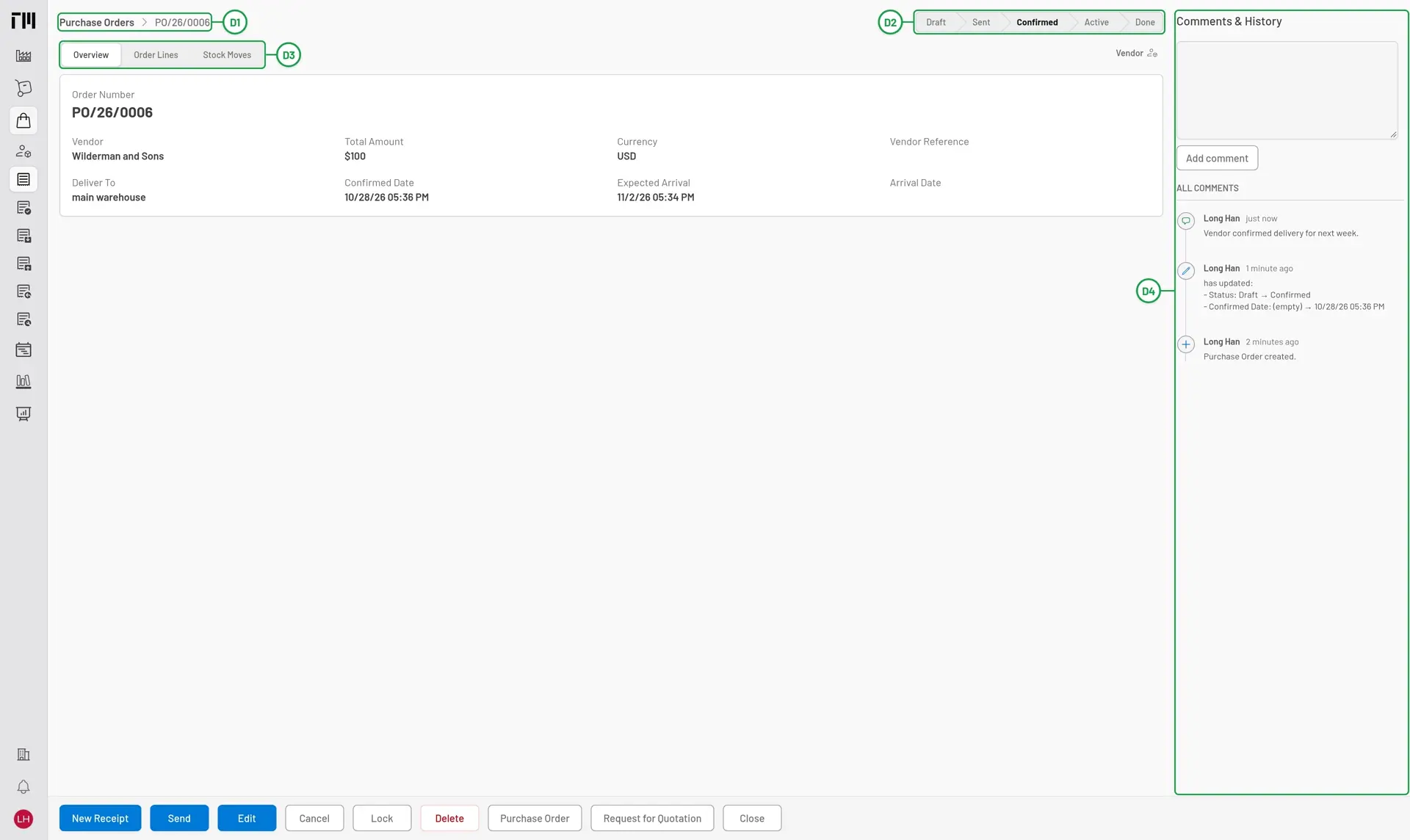
Section titled “Document detail”D1 — Breadcrumb (left). Click the document type name to return to the list.
D2 — Status bar (right). Shows the document’s current status in its workflow.
D3 — Tab bar. Organizes document attributes and related documents into sections.
D4 — Comments & History (right). Add comments and view the timeline of changes. On a wide screen it stays open beside the document; otherwise, and on documents with an attachments viewer, open it with Comments & History at the right end of the bottom toolbar.
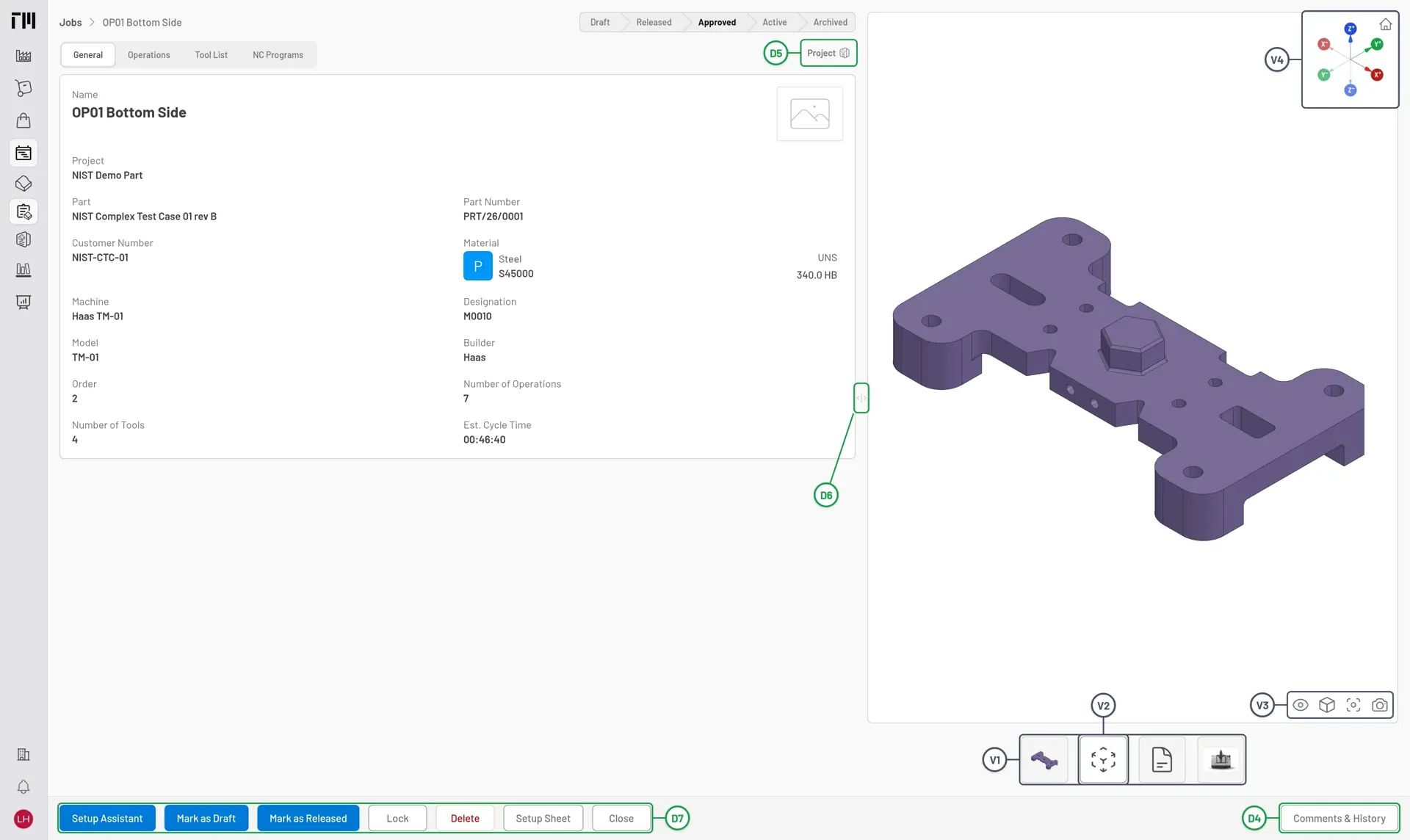
D5 — Document references, at the right of the tab bar. Clicking a referenced document navigates to it (e.g., a purchase order links to its vendor, a job to its project).
D6 — Resize handle, between the document and the attachments viewer. Click and hold to resize the viewer panel.
D7 — Bottom toolbar (left side). Contains Edit, Delete, Print, and other contextual commands.
Attachments viewer
Section titled “Attachments viewer”The attachments viewer supports: images (PNG, JPEG, GIF), PDF documents, 2D drawings (DXF), and 3D models (STEP).
V1— Attachments switcher (bottom). Lists all available attachments as thumbnails or icons.V2— Active attachment. The currently displayed file.V3— CAD toolbar, at the bottom right of the viewer. Appears when viewing a drawing or 3D model; a drawing has only Fit and Capture.V4— View cube, at the top right of a 3D model. Shows the orientation of theX,Y, andZaxes. Click an axis label to look along that axis, or the Home (isometric) button at its corner to return to the isometric view.
CAD toolbar controls:
- Display — Toggle the coordinate systems, the wireframe, and transparency.
- Views — Turn the model to Front, Top, Left, Isometric, Back, Bottom, or Right.
- Fit — Fit the model to the canvas.
- Capture — Download the current view as a PNG image, without the view cube.
- On a tool assembly, Model detail switches between the Basic and Detailed models, Reload reloads them, and Display also toggles the dimensions. On a product, Basic and Detailed sit beside the attachments switcher.
- Drag — Orbit the model. Right-drag to pan, scroll to zoom.
- Arrow keys — Orbit the model.
- W S — Move toward or away from the model. A D — Pan left or right.


© 2026 ToolingMetrics. All rights reserved.