Update an exchange rate
Record a new exchange rate for a currency so upcoming purchase orders reflect current market rates.
Prerequisites: The currency exists — see Configure currencies.
Required permission: Admin Center access (organization owner or a member of the <org-name>-admins group).
Exchange Rate is its own resource in Tooling Metrics, dated and kept as a history — it is not a field you edit directly on the currency. Add a new rate before creating or confirming purchase orders when the market rate has moved since the last entry.
When to add a rate
Section titled “When to add a rate”Add or refresh an exchange rate:
- Before confirming a purchase order in a foreign currency for the first time — a currency with no rate entered yet can still be selected on a PO, but the order can’t be confirmed until the currency has a rate dated on or before the confirmation date.
- Before issuing a large purchase order in a foreign currency when the rate has moved.
- At the start of each month or quarter as a regular housekeeping task.
There is no need to update rates in real time. A purchase order uses the most recent rate dated on or before the day it was confirmed.
-
Click your organization name at the bottom of the sidebar → Manage Organizations, then open your organization.
-
In the admin sidebar, click Currencies.
-
Open the currency you want to update.
-
In its exchange rate table, click + in the Actions column.
-
Set the Date this rate takes effect.
-
Enter the Rate — the number of base-currency units equal to one unit of this currency.
For example, if your base currency is USD and the current rate is 1 EUR = 1.09 USD, enter
1.09. -
Click Create.
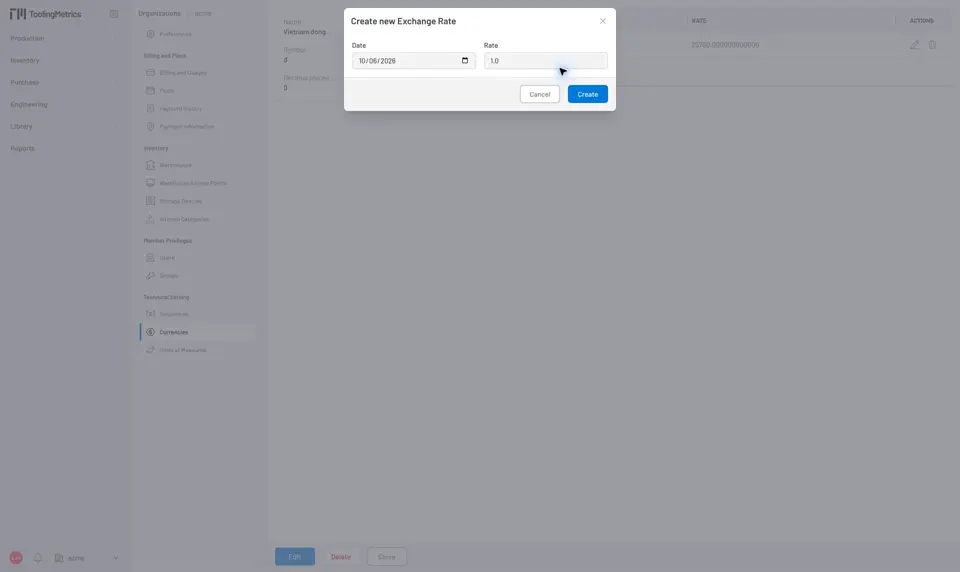
Fig. 1: Add a dated exchange rate. The most recent entry on or before today is the rate Tooling Metrics uses.
What changes and what does not
Section titled “What changes and what does not”A purchase order doesn’t store a copy of the rate. Whenever Tooling Metrics converts its prices to the base currency — for example, to cost its receipts and restocks — it looks up the most recent rate dated on or before the order’s confirmation date.
| Affected | Not affected |
|---|---|
| Purchase orders confirmed on or after the new rate’s date | Purchase orders confirmed before the new rate’s date |
| Receipts and restocks created afterward for those orders | Line prices on purchase orders, which stay in the order’s currency |
| Receipts and restocks already created |
Adding a rate with a newer date never changes orders confirmed earlier. Adding or editing a rate with an earlier date can change the rate used for orders confirmed on or after that date, so leave past rates as they are.
Check the rate used by a purchase order
Section titled “Check the rate used by a purchase order”- Note the purchase order’s confirmation date.
- Open the currency in the admin sidebar under Currencies.
- In its exchange rate table, find the most recent entry dated on or before that date.
- Each currency keeps a full history of dated Exchange Rate entries — the current rate is simply the most recent one on or before today. There is no separate “history viewer” beyond this list.
- The base currency always has a rate of 1 and cannot be edited.
- For context on how exchange rates flow through the purchasing process, see Create a Purchase Order in a Foreign Currency — Where the exchange rate actually applies.


© 2026 ToolingMetrics. All rights reserved.