Track a serialized item
Give a physical tool its own identity in the system and follow it through every location, service, and use.
Prerequisites: The Item is marked Serialized Item (Inventory → Items — User or above to change this on an item you created, or Admin on any item; only possible while the item’s status is Draft or Released).
Required permission: Purchase → Purchase Receipts or Inventory → Adjustments — User or above to register a piece; Inventory → Items — User or above to set service thresholds; Inventory → Serialized Items — User or above to follow a piece. Managers and Users change only the records they created, and a User sees only the pieces of items they created.
There is no standalone “new serialized item” screen. A Serialized Item record is created only as the side effect of a move line that brings stock of a serialized item into the organization — a Purchase Receipt, or an Inventory Adjustment that counts a serial number not yet registered.
Register a piece on receipt
Section titled “Register a piece on receipt”- Process the incoming move (Purchase Receipt or Inventory Adjustment) as usual. On its Move Lines tab, click the list icon next to the serialized item’s reserved quantity. Edit Move Line opens, with a table of Serial Number, Cost, and Condition below the quantity.
- On a purchase receipt, click + under the table to add a row for each unit. Each new row is pre-filled with a system-generated UUID (in UUIDv7 format). On an inventory adjustment, enter the serial numbers you counted in Counted Serial Numbers and click Serial Numbers Reconcile: each serial number not yet registered gets its own row.
- To keep a generated UUID, leave it as is — you can print it as a tag and stick it on the physical piece. To use the manufacturer’s or a previous owner’s serial number instead, overwrite the Serial Number field; a barcode scanner types the code straight into it.
- Click Update, then complete the move as normal. Each row becomes its own Serialized Item record the moment the line is validated.
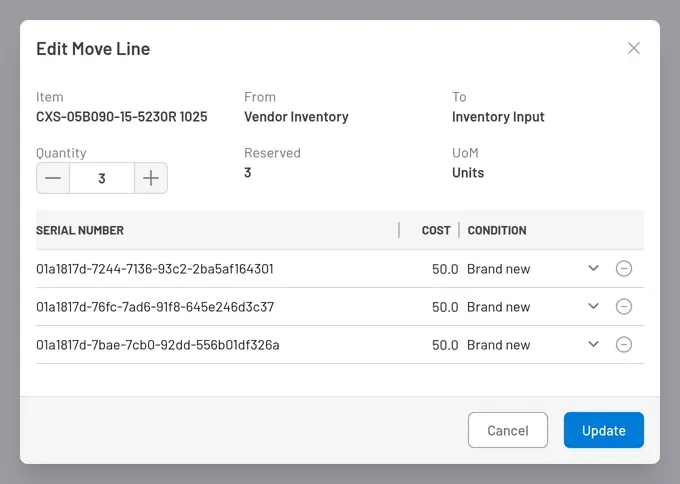
Fig. 1: Registering a serialized item on receipt — the UUID is generated automatically but can be overwritten with a real serial number.
Select a piece on an outgoing move
Section titled “Select a piece on an outgoing move”For an outgoing or return move against stock that is already serialized (a pick, a transfer out, or a decrease), the line’s row is labeled Select Serialized Item instead — a dropdown of the specific pieces currently available at that move’s source, defaulting to the oldest piece by creation date. Choose a different piece if the job calls for a specific one (e.g., to keep a near-end-of-life piece in rotation).
Configure service thresholds
Section titled “Configure service thresholds”Service thresholds are configured once on the parent Item, not per piece — every Serialized Item under that Item is evaluated against the same thresholds. They are only available when the item is both a Serialized Item and Can be Serviced.
- Open the Item (not the individual serialized piece) and click Edit.
- Open the Service tab.
- Add one or more thresholds:
- Time Interval — trigger a fixed number of days after the last service.
- Usage Cycles — trigger after N pick-and-return cycles.
- Usage Time — trigger after N hours of runtime.
- Usage Cost — trigger when accumulated usage cost exceeds a value.
- Remain Cost — trigger when the piece’s remaining cost value drops below a threshold.
- Save.
When any threshold is crossed for a specific piece, that Serialized Item’s condition moves to Need service.
Follow a piece
Section titled “Follow a piece”- In the sidebar, click Inventory → Serialized Items.
- Open the piece. The detail page shows its Serial Number and data-matrix code, its current Location (computed live from move history, not a stored field), its Condition, cost, and accumulated usage cycles/time/cost.
- If the parent item can be serviced, the page also shows Last Service Performed at, Next Service Scheduled at, and Need Service? — all computed from the parent item’s thresholds.
- Open the Moves History tab for a complete log of every location change, and the Usage History tab for cost lines posted against this specific piece.
- A Serialized Item’s UUID must be unique across the entire application (not just your organization) and between 3 and 36 characters — this is what lets a short, real-world serial number be used in place of the generated UUID.
- Thresholds and their triggers are evaluated per piece against the item’s shared configuration; two pieces of the same item can be at different points in their service cycle at the same time.


© 2026 ToolingMetrics. All rights reserved.