Combine jobs into a project
Group related standalone jobs under a single project for unified release, purchasing, and setup sheet generation.
Prerequisites: At least one job exists, or you are planning multiple jobs for the same part.
Required permission: Engineering → Projects and Jobs — User or above. Admins can change, release, and approve any project or job; Managers and Users only the projects and jobs they created.
Jobs can exist independently, but grouping them under a project unlocks project-level status actions — Release, Approve, Lock — applied to every job at once, shared setup sheet access, and a single approval record for the whole manufacturing plan.
Use this guide when:
- You have created standalone jobs you want to consolidate.
- You are planning a multi-operation part that involves more than one setup or machine.
Create the project
Section titled “Create the project”- In the sidebar, click Engineering → Projects.
- Click + Create.
- Enter the project Name.
- Click Create.
The project is created in Draft status with no jobs yet.
Add new jobs to the project
Section titled “Add new jobs to the project”If the jobs do not exist yet:
- Open the project and click the Process tab, then click + at the bottom of the job list.
- Enter the job Name (e.g., Op 10 – Mill, Op 20 – Turn).
- Select the Machine.
- Click Create.
- Repeat for each additional setup.
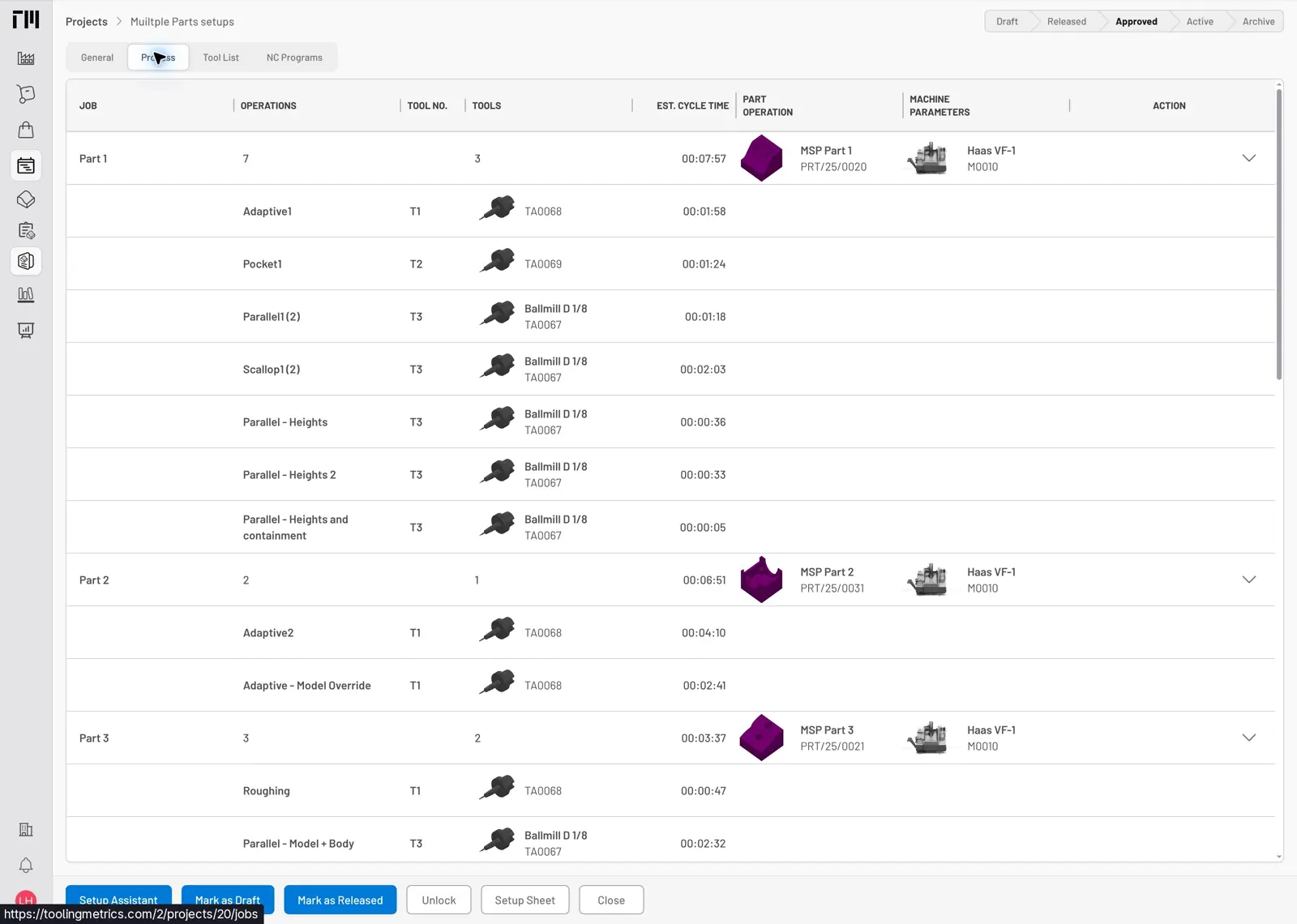
Fig. 1: Process tab — multiple setups grouped under one project. The sequence order determines the setup sheet print order.
Assign an existing standalone job to the project
Section titled “Assign an existing standalone job to the project”If the job already exists without a project:
- In the sidebar, click Engineering → Jobs and open the job.
- Click Edit in the bottom toolbar.
- In the Project field, search for and select the project.
- Click Update.
The job now appears in the project’s Process tab. Its operations and tool assignments are unchanged.
Set the job sequence
Section titled “Set the job sequence”- In the project’s Process tab, drag jobs by the ≡ handle in the Action column of each row.
- Arrange them in the intended machining sequence — this order appears on the setup sheet.
Release the project
Section titled “Release the project”- Open the project and click Release on the bottom toolbar.
Release runs a pre-release check and locks every job in the project for engineering-manager approval; it does not sync anything to inventory. Click Mark as Draft to reverse this if changes are still needed. See the full status flow in the Projects Reference.
Approve the project
Section titled “Approve the project”- Open the project and click Approve on the bottom toolbar.
Approve is the step that syncs tool assemblies and products to inventory — this is what makes tooling available for purchasing and shopfloor pickup. Click Mark as Released to move an approved project back to Released status without undoing that sync.
- Project-level status and lock actions (Release, Approve, Mark as Draft, Mark as Released, Lock/Unlock) apply to every job in the project at once, overwriting each job’s own status or lock state regardless of what it was set to individually.
- If all jobs run on the same machine (multiple clamping changes, one machine), enable Multiple jobs setup on the project before adding jobs. See Document a Multiple-Setup CAM Project.
- A standalone job (no project) can still be released and approved independently from its own detail view.


© 2026 ToolingMetrics. All rights reserved.