Build your first tool assembly
Combine products into a complete tool assembly in Tooling Metrics, with a 3D model, drawing, and bill of materials.
Prerequisites: Products exist in the library.
Required permission: Library → Tool Assemblies — User or above.
A Tool Assembly is the digital master for a physical cutting tool configuration — the combination of a cutting tool, adaptor, and holder that goes into a machine spindle. In this tutorial you will build a 3.5 mm drill assembly on a CAT40 holder.
Create new tool assembly
Section titled “Create new tool assembly”- In the sidebar, click Library → Tool Assemblies → + Create.
- Enter the name CAT40 Drill 3.5 → click Create. The Assembly Builder opens.
Add the first product tool
Section titled “Add the first product tool”- In the Structure panel on the left, click the ⊕ Add button.
- The Product List appears on the right. Filter by Manufacturer: Iscar and Operation: Drilling to find the 3.5 mm drill (designation SCD 035-014-060 ACP3N). Click ⊕ on its row to add it.
- The drill appears in the Structure panel and its 3D model loads in the viewer.
Add machine-side products
Section titled “Add machine-side products”- Click Add to Machine Side button on the top side of drill’s product card in the Structure panel.
- The Product List now shows only products that are compatible with the drill’s machine-side connection code. Find the collet ER16 SEAL 8 AA and add it.
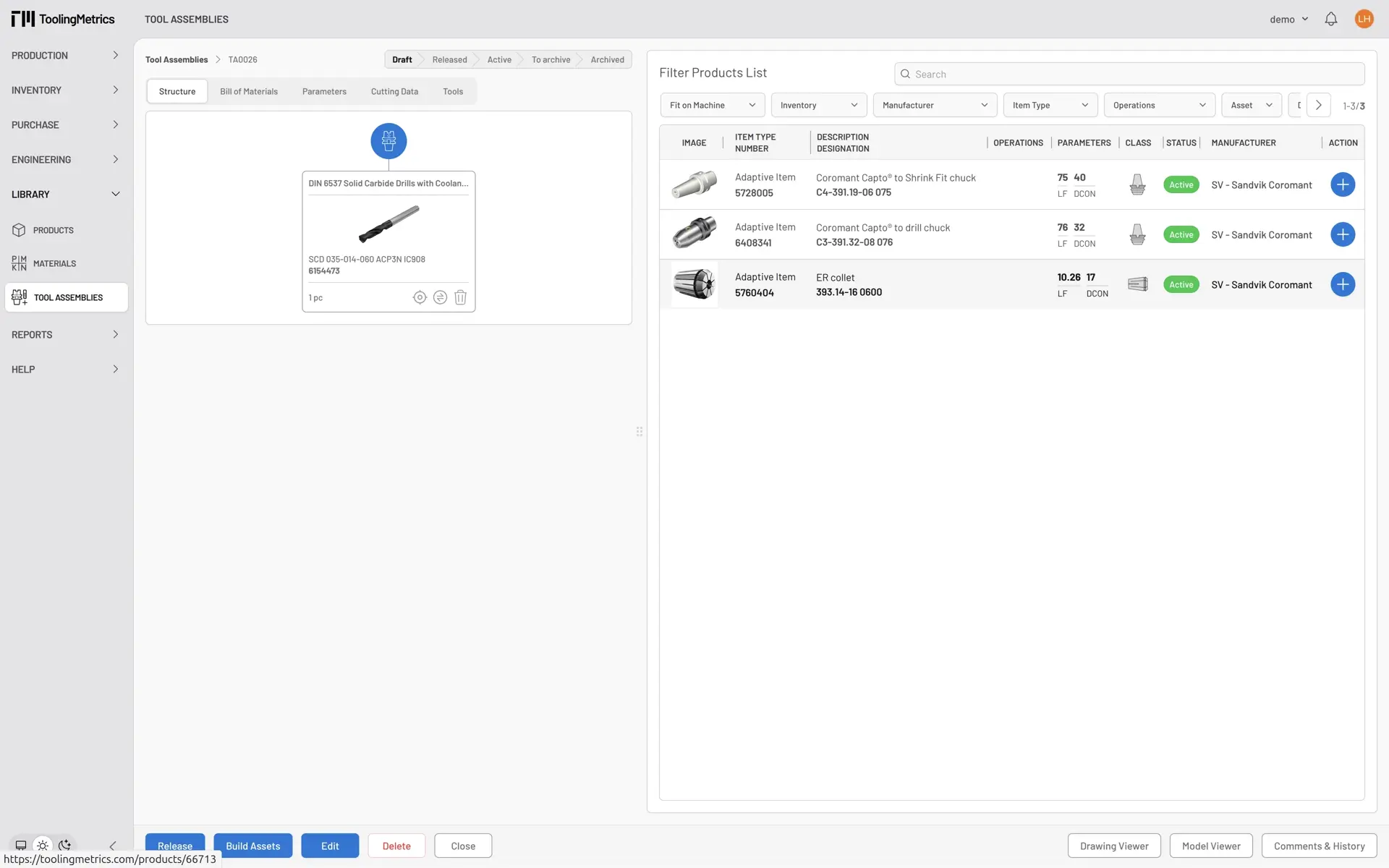 (full size)
 - Click Add to Machine Side button below the collet card, then add the CAT40 holder product with designation AA3B14-40 16 067.
Build the assets
Section titled “Build the assets”- With all three components in place, click Build Assets in the bottom toolbar.
- While the build runs, explore the Bill of Materials tab (products by quantity) and the Parameters tab (combined assembly parameters).
- When the build completes, click Drawing Viewer to see the generated 2D assembly drawing.
- To view the 3D model, click the 3D model icon in the CAD toolbar → Detailed. When loaded, press the camera icon to capture the current view as the assembly picture.
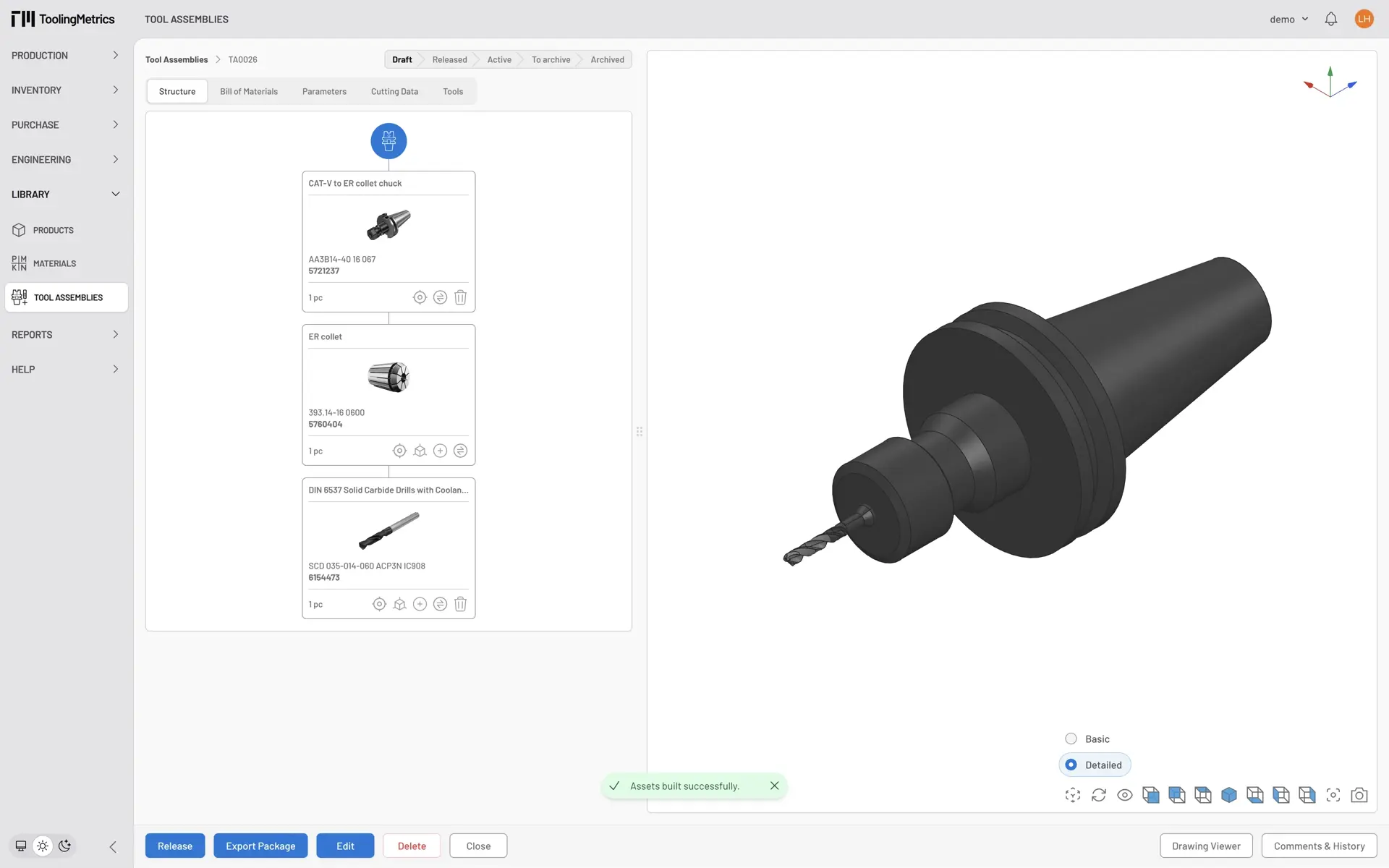 (full size)
Connection code matching
Section titled “Connection code matching”When you click any buttons to add, exchange, or insert a product into the assembly, Tooling Metrics automatically filters the product list to show only products whose coupling code matches the current assembly’s structure and product interfaces. This prevents incompatible combinations and is the core of the automatic assembly compatibility system.
What to expect
Section titled “What to expect”A completed tool assembly has:
- The Parameters and cutting reference points for cutting edge products.
- Tool assembly classified correctly in the GTC categories.
- A Bill of Materials listing every product with quantity
- A 3D model rendered correctly in the CAD viewer, including LTA - Tool Assembly Length, WTA - Tool Assembly Width dimensions
- A generated 2D drawing showing the assembled tool with dimensions
Try building a few more assemblies from the other products in your library (see Tool assembly list) before moving on.
Calculate cutting data — define the cutting parameters for each assembly and material combination.


© 2026 ToolingMetrics. All rights reserved.