Create custom product
Add a single product to Tooling Metrics from individual asset files when no GTC package is available.
Prerequisites: Asset files downloaded for each product (see quickstart).
Required permission: Library → Products — User or above.
When a manufacturer does not provide a GTC package, you can create products individually using the asset files available on their website. In this tutorial you will add the Iscar and Tungaloy products listed in the product list in the quickstart.
Get the asset files
Section titled “Get the asset files”For each product, you need:
| File | Format | Purpose |
|---|---|---|
| Data file | .p21 |
ISO 13399 parameters — Tooling Metrics parses this automatically |
| Picture | .png / .jpg |
Shown in the product list and assembly builder |
| Family drawing | .png / .jpg |
Drawing with annotated dimension symbols |
| Model basic / Model detailed | .stp |
Used in the assembly builder and tool assembly visualization |
| Drawing | .dxf |
CAD viewer and for assembly drawing generation fallback |
Create a new product
Section titled “Create a new product”Repeat the following steps for each product in your list.
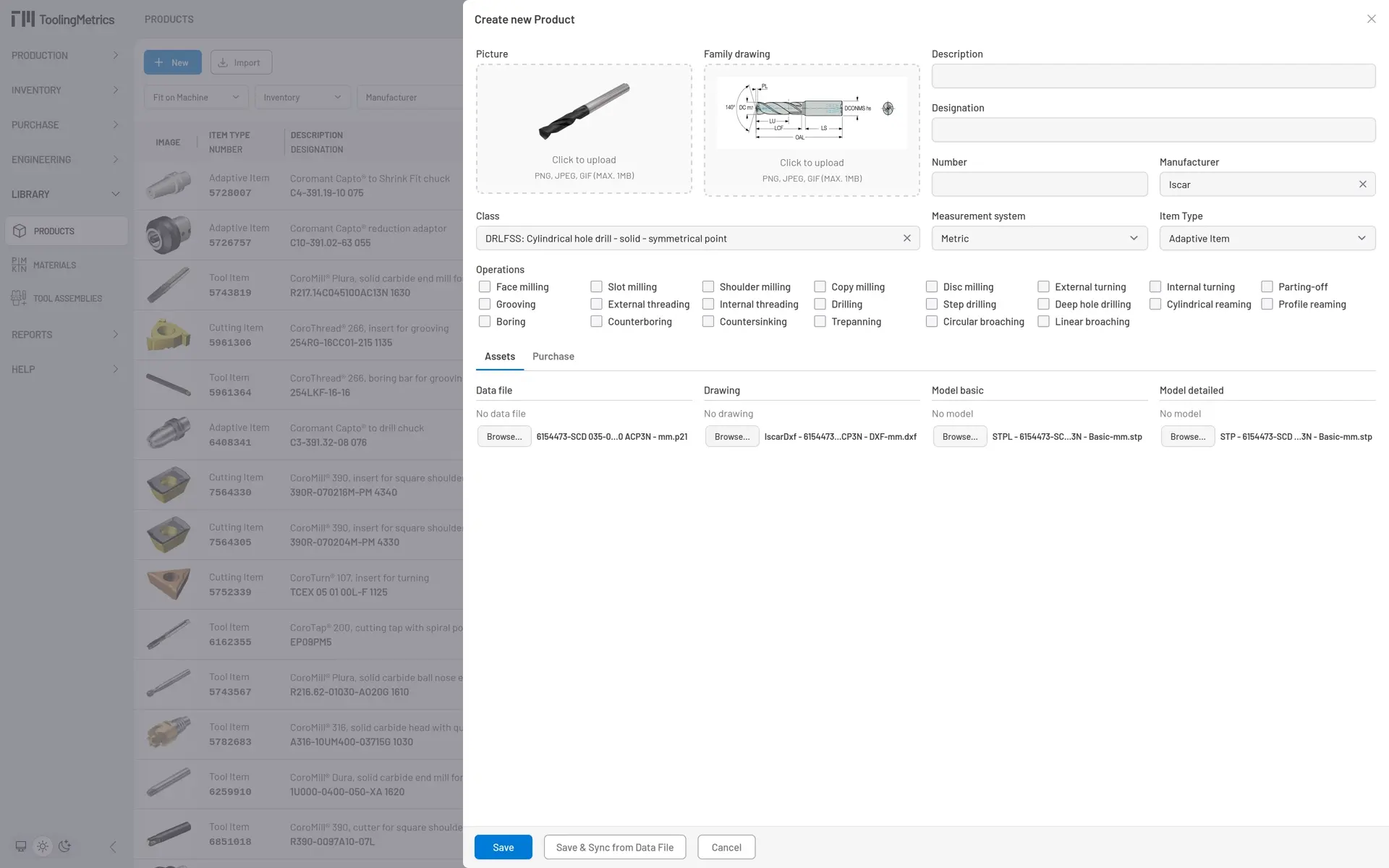
- In the sidebar, click Library → Products → + Create.
- Select the Manufacturer from the dropdown (e.g., Iscar or Tungaloy).
- Select the product Class from the list (e.g., DRLFSS: Cylindrical hole drill).
- Attach the Picture, Family drawing, Data file, Drawing, Model basic, and Model detailed files using the file upload fields.
 (full size)
 - Click Save & Parse Data File.
Tooling Metrics reads the .p21 file and automatically populates: product number, description, designation, order code, barcode, connection codes, operations, and parameters.
What to verify
Section titled “What to verify”After saving, open the product and verify the parsed data:
- Parameters table — check that key dimensions (diameter, length, connection codes) are correct. Parameters from the data file cannot be edited directly; contact the manufacturer if values are incorrect.
- Operations — verify the machining operations are set. If the operations field is empty, click Edit and check the correct operations manually.
- CAD Viewer - verify the picture, 2D drawing, and 3D models are displayed correctly. Toggle the coordinates icon to verify the coordinate systems (Primary Coordinate System - PCS, Machine Coordinate System - MCS, Workpiece Coordinate System - WCS, Cutting Interface Point - CIP) and cutting reference points (CRP) are placed correctly.
Known issues
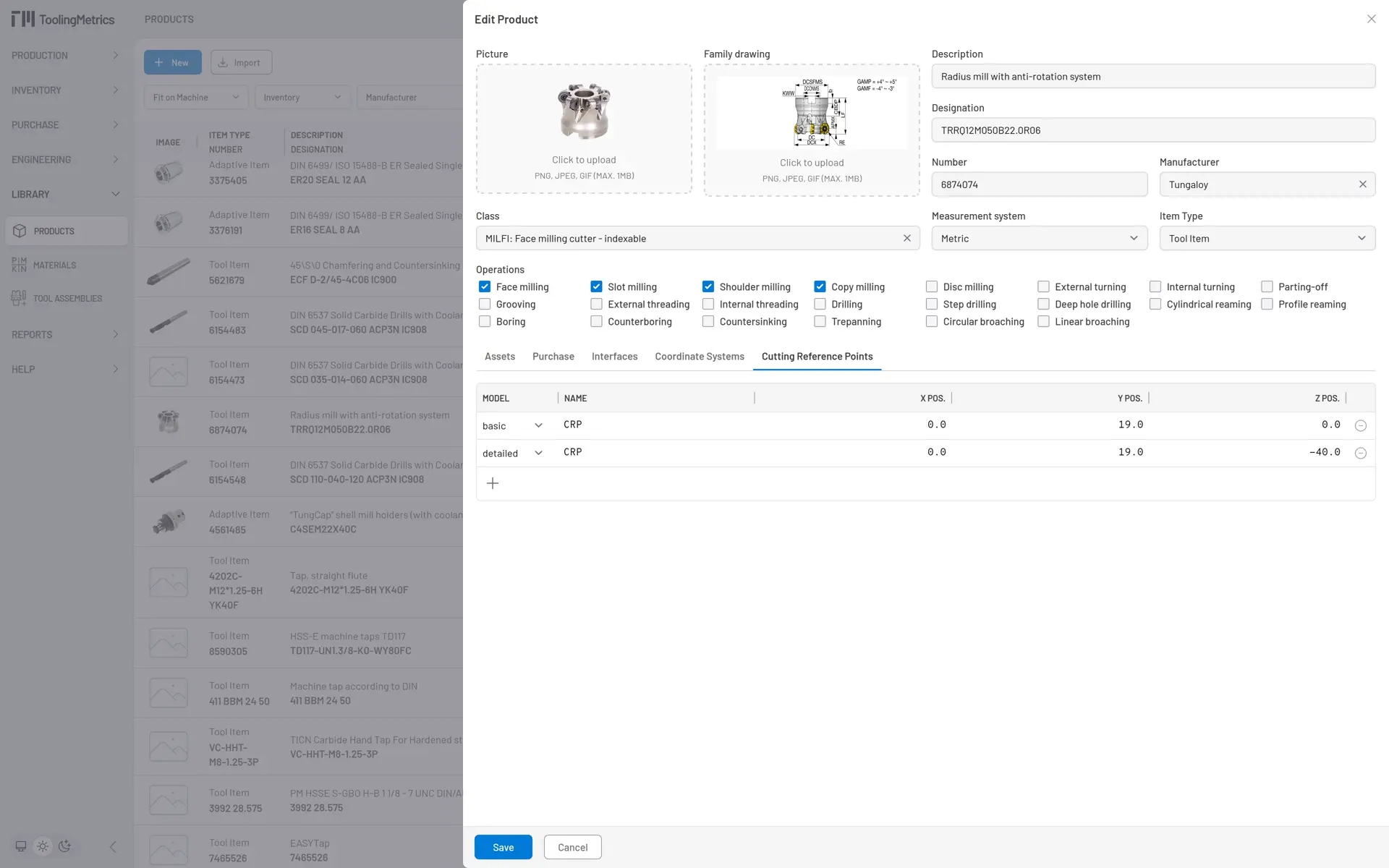
Section titled “Known issues”The parameters provided in the data file might be missing or inaccurate. In this case, Tooling Metrics allows you to edit the attributes manually. One example is the product number 6874074 which requires manual Operations and CRP setup. We need to update that attribute by following these steps.
- Moving the mouse to the bottom toolbar and click Edit button.
- Mark the Face milling, Slot milling, Shoulder milling, and Copy milling checkbox in the Operations attribute.
- Click on the Cutting Reference Points tab ➔ ⨁ button, to add a new CRP.
- In that new CRP row, set the Model to basic, named it CRP, and enter the X, Y, Z Pos at 0, 19, 0.
- Add other CRP with the Model is detailed, X, Y, Z Pos at 0, 19, -40. Now click Update to save the changes and close the edit product form.
 (full size)
Other cutting edge products are chamfer mill and drill also require manual Operations update too. Do the same steps as above for those products
| Number | Designation | Operations |
|---|---|---|
| 6154473 | SCD 035-014-060 ACP3N | Drilling |
| 6154483 | SCD 045-017-060 ACP3N | Drilling |
| 6154498 | SCD 060-020-060 ACP3N | Drilling |
| 6154518 | SCD 080-029-080 ACP3N | Drilling |
| 6154528 | SCD 090-035-100 ACP3N | Drilling |
| 6154538 | SCD 100-035-100 ACP3N | Drilling |
| 6154548 | SCD 110-040-120 ACP3N | Drilling |
| 5621679 | ECF D-2/45-4C06 | Shoulder milling |
Next task
Section titled “Next task”At this point, we have the product library for those items we have in our inventory. We are going to use this library to create other documents we have in our machine shop. Let’s start to build a new tool assembly — using the Assembly Builder.


© 2026 ToolingMetrics. All rights reserved.