Document an engineering process
Build a complete manufacturing plan in Tooling Metrics without CAM software — parts, jobs, operations, and cutting data in sequence.
Prerequisites: Tool assemblies with cutting data are set up in the Library. At least one machine is configured.
Required permission: Engineering → Parts, Projects, and Jobs — User or above. Admins can change any part, project, or job; Managers and Users only the ones they created.
Use this guide when you are defining the machining process manually — not importing from CAM software. The Process tab on a project shows the jobs list and gives you a full view of the manufacturing sequence across all jobs, letting you build and review the complete plan in one place.
Create the part
Section titled “Create the part”- In the sidebar, click Engineering → Parts.
- Click + Create.
- Enter the Part Number and Name.
- Optionally assign a Material and attach a technical drawing or 3D model.
- Click Create.
Skip this step if the part already exists.
Create the project
Section titled “Create the project”- In the sidebar, click Engineering → Projects.
- Click + Create.
- Enter the project Name.
- Click Create.
The project opens in Draft status. All editing happens in Draft.
Add jobs
Section titled “Add jobs”Each job represents one machine setup — one clamping, one machine, one fixture orientation.
- In the project, click the Process tab, then click + at the bottom of the job list.
- Enter the job Name (e.g., Op 10, Side A – Facing).
- Select the Machine this job runs on and the Part it machines.
- Click Create.
Repeat for each distinct setup the part requires.
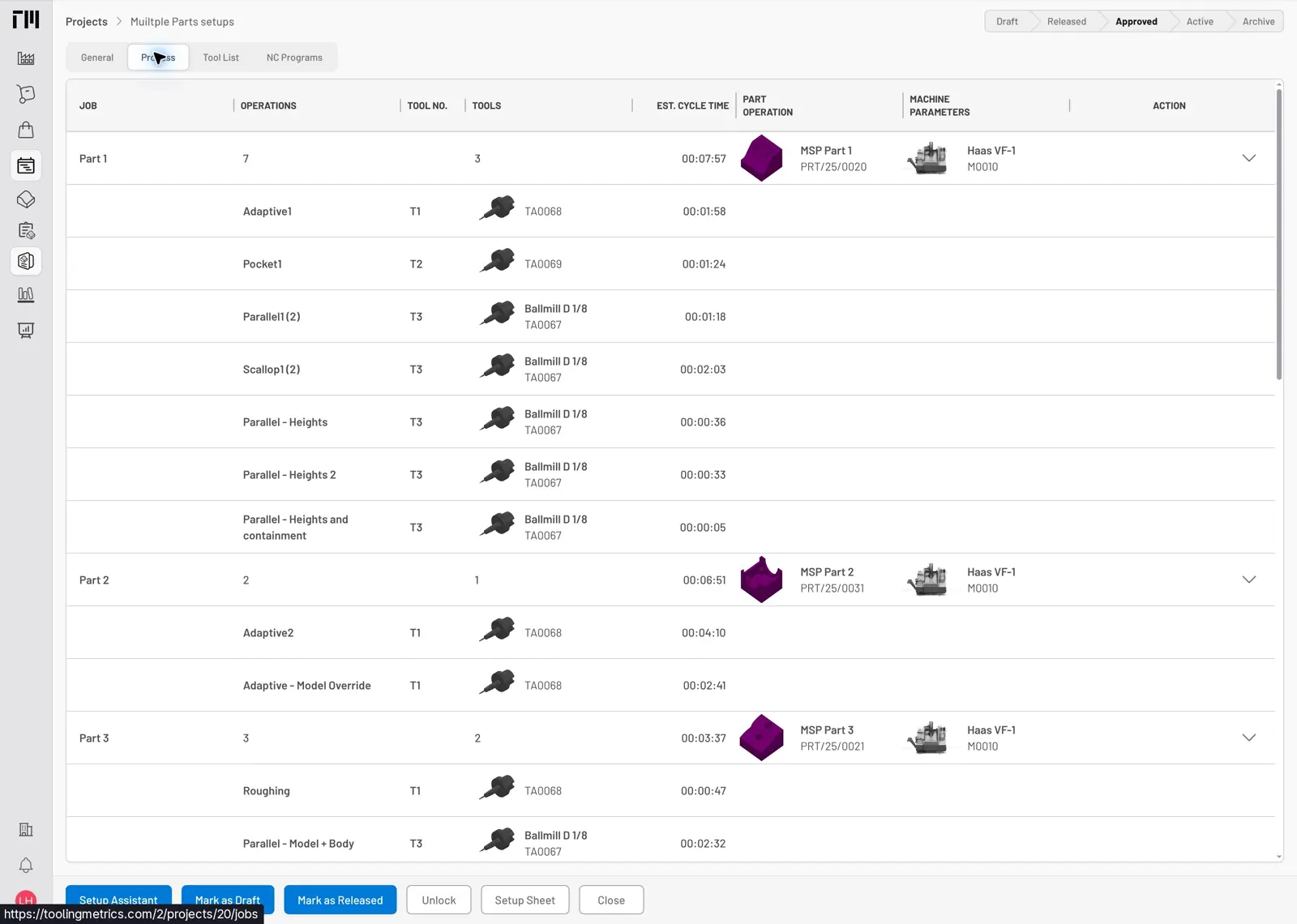
Fig. 1: The Process table groups jobs by part and shows each assigned machine and the estimated cycle time.
Build operations on the process tab
Section titled “Build operations on the process tab”The Process tab shows all jobs in sequence — the full machining plan on one screen.
- On the Process tab, click + in the job’s row (or open the job and click + at the bottom of its Operations tab).
- Enter the Name (e.g., Face mill, Drill Ø12).
- Select the Tool Assembly. The list filters to assemblies compatible with the machine’s spindle interface.
- Enter the Tool No. and the Est. Cycle Time (seconds per part) — both are required.
- Click Create.
Repeat for each operation in the job, then for the other jobs.
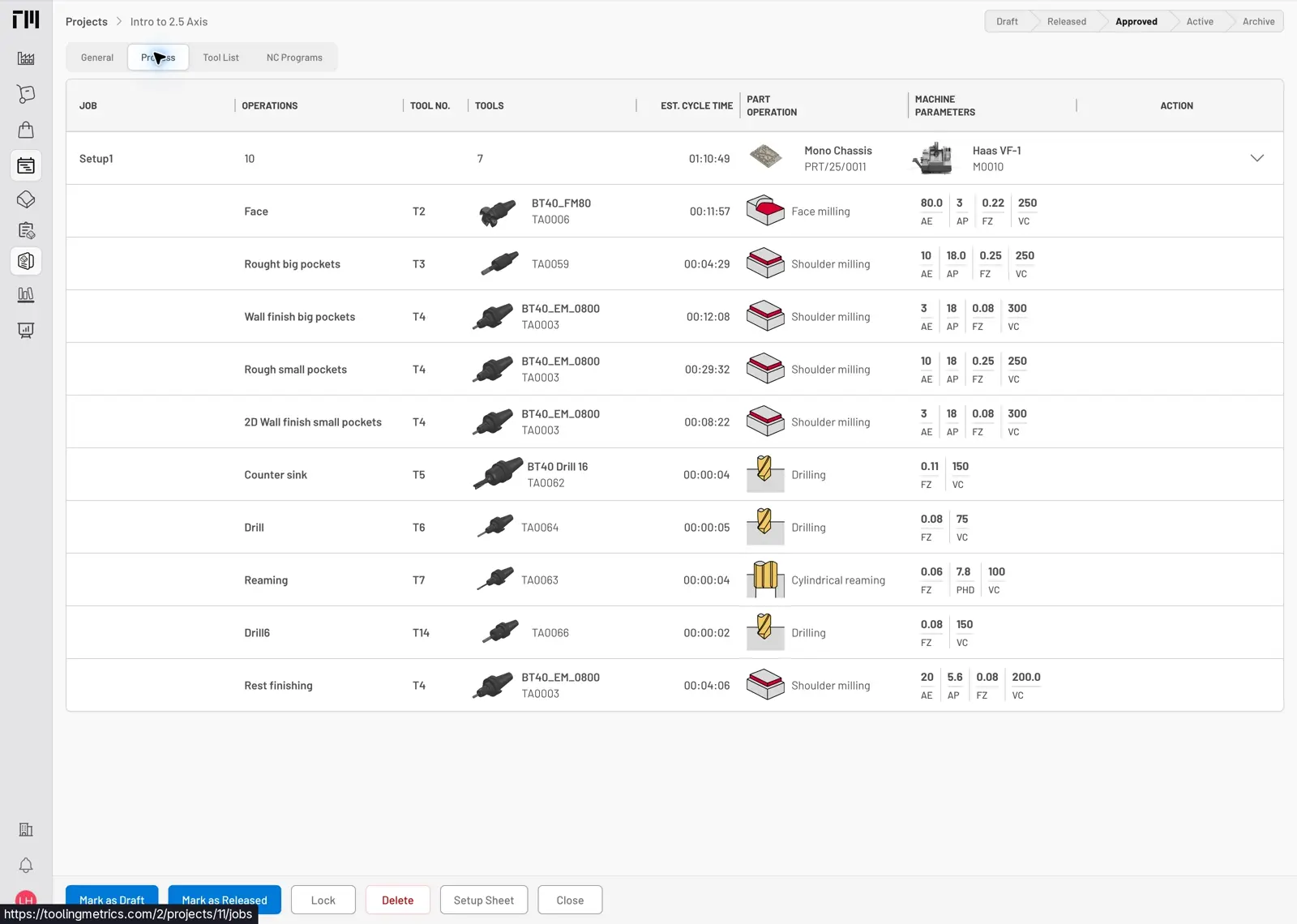
Fig. 2: Each job expands to show its operations, assigned tool assemblies, estimated cycle times, and cutting parameters.
Set tool numbers
Section titled “Set tool numbers”Tool numbers (T-codes) determine which pocket the machine loads each tool from. Assign them before generating the setup sheet.
- Open a job, click the Tool List tab, and click Renumber at the bottom of the list.
- Review the proposed numbering — tools are numbered in operation order by default.
- Adjust individual tool numbers if your machine has reserved pockets or a preferred scheme.
- Click Renumber.
See Renumber tools for NC output for details.
Reorder operations and jobs
Section titled “Reorder operations and jobs”Drag operations within a job using the ≡ handle at the right end of each row. Drag jobs in the Process tab to change their sequence in the plan. The displayed sequence order drives the setup sheet and is the order the operator prepares tools.
Release and approve the project
Section titled “Release and approve the project”- Return to the project detail view.
- Click Release on the bottom toolbar.
Release locks all jobs for engineering-manager approval; it does not sync anything to inventory yet. See the full status flow in the Projects Reference.
- Once reviewed, click Approve on the bottom toolbar.
Approve is what syncs all tool assembly products to Inventory Items. The purchasing team can then run the Inventory Scheduler to generate purchase requests for any items not in stock.
- On the Process tab you can add operations to a draft job and edit, delete, or reorder jobs from each job row. To edit or reorder operations, open the job.
- If the process was programmed in CAM software instead of planned manually, use Import a CAM project to skip the manual steps above.
- For multi-setup projects where all jobs run on the same machine, see Document a Multiple-Setup CAM Project.


© 2026 ToolingMetrics. All rights reserved.