Configure usage costs
Set the costing method on categories so every pick and every machine hour posts the right cost automatically.
Prerequisites: Items are assigned to Internal Categories. Items have a unit cost (from purchase or manual entry).
Required permission: Admin Center access (organization owner or a member of the <org-name>-admins group) for categories. Inventory → Items — User or above for item overrides; Admins can edit any item, Managers and Users only the items they created.
For background on why cost methods are configured on categories and inherited by items, see How tool cost allocation works.
Set the cost method on a category
Section titled “Set the cost method on a category”A root category must have its own Usage Costing Method and Usage Rate. A child category can leave either field blank and take the value from its nearest ancestor that sets it, so if Inserts and its child categories share the same costing behavior, set the method once on Inserts.
- In the sidebar, click Admin → Internal Categories.
- Open the category to configure (or create a new one).
- Select the Usage Costing Method:
- Fixed Rate — the Usage Rate is a flat amount posted each time an item is picked to a machine.
- Unit Cost x Usage Rate — each pick posts the entered percentage of the item’s current unit cost.
- Purchase Price x Usage Rate — each pick posts the entered percentage of the item’s purchase price, capped at the unit cost.
- Usage Time x Usage Rate per Hour — the Usage Rate is an hourly amount posted automatically for every hour the item stays on a machine.
- Enter the Usage Rate — a currency amount for the fixed and hourly methods, a decimal percentage for the two percentage methods (e.g.,
0.02for 2%). - Save. Items assigned to this category that don’t have their own override now use this method.
- Repeat for each root category, and for any child category that should differ from its parent.
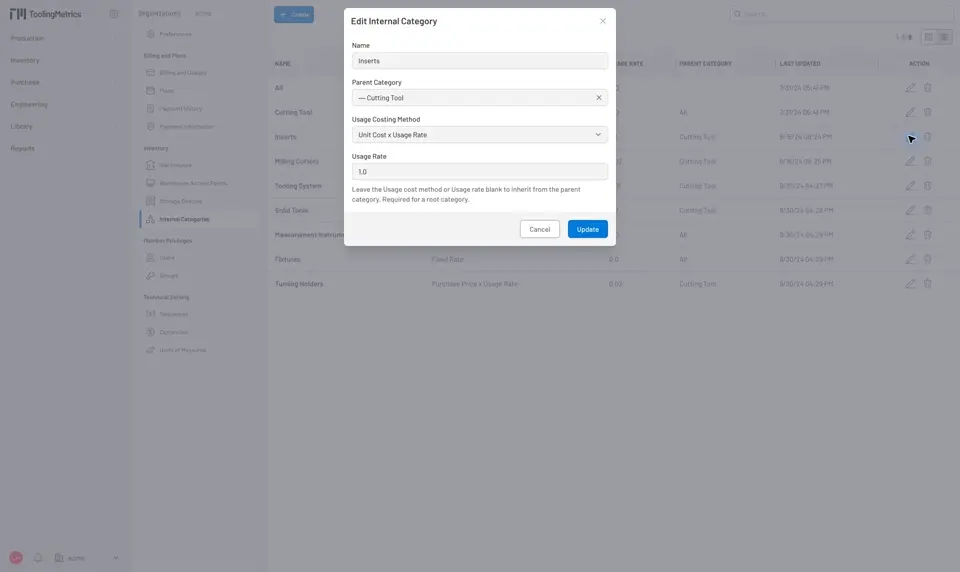
Fig. 1: Category cost configuration — required on a root category, optional on a child category. Items assigned to the category inherit this method unless they set their own override.
Override the method on a single item
Section titled “Override the method on a single item”- In the sidebar, click Inventory → Items and open the item.
- Click Edit, then open the Usage Cost tab in the form.
- Select a Usage Costing Method. Leave it on Following categorical hierarchy to keep inheriting from the category.
- Enter the Usage Rate and save. The item-level setting always wins over the category.
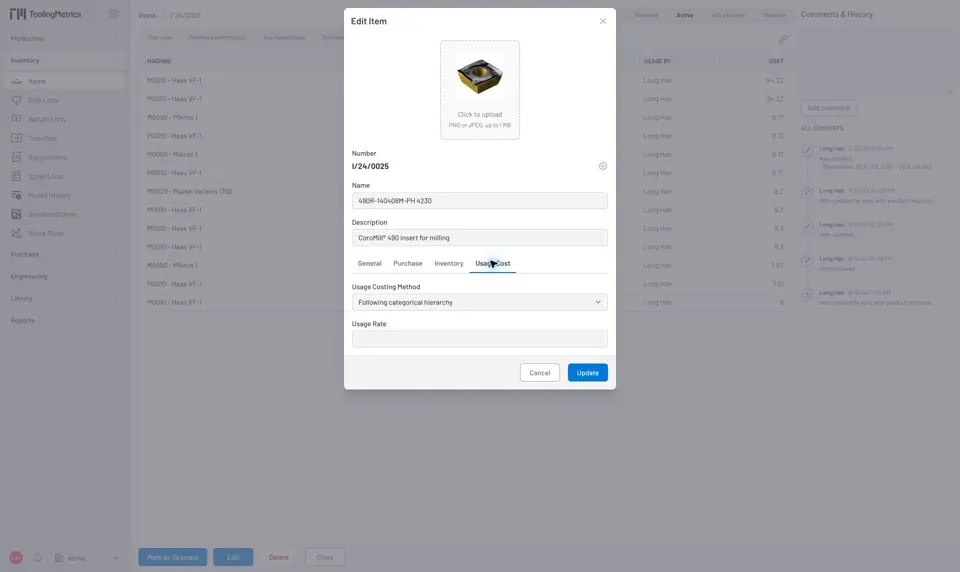
Fig. 2: Item override — only set this when one item genuinely needs different treatment than its category.
Verify costs are posting
Section titled “Verify costs are posting”- Pick a configured item to a machine via a Pick List or Tool Transfer and validate it.
- Open the item and click the Usage History tab. A cost line appears for the pick, with the machine and user recorded.
- For the hourly method, cost lines are posted automatically once per day for as long as the item remains on a machine — check the same tab the next day.
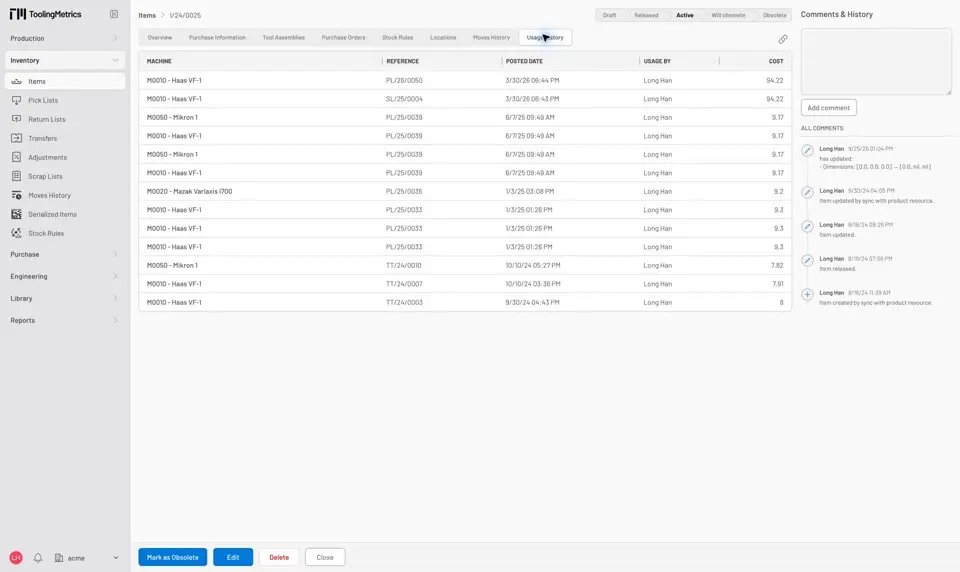
Fig. 3: Usage History — every posted cost line with its machine and date. The same tab exists on Tools and Machines.
- The effective rate shows on the item Overview as Usage Cost per pick or per hour.
- Per-pick methods post when the move to a machine is validated — transfers between storage locations post nothing.
- Usage History is also available per machine (Production → Machines → Usage History tab) for machine-level cost review.
- For field definitions and inheritance rules, see Internal Categories Reference.


© 2026 ToolingMetrics. All rights reserved.